
Every second your store takes to load, shoppers are leaving. Not because your products are bad. Because your images are too heavy, too slow, and costing you sales you have already earned.
Shopify image optimization is one of the highest-impact fixes any merchant can make. Unoptimized images make up nearly 38% of a webpage’s total weight on mobile. That weight slows your store, hurts your Google rankings, and pushes shoppers toward a competitor whose page loaded faster.
The good news is that Shopify image optimization does not require a developer. This guide walks you through exactly what Shopify image optimization means, why it matters for your bottom line, and eight practical steps you can start today.
Summary
- Section 1: What Shopify image optimization actually means and why it matters for sales
- Section 2: Why slow images hurt your SEO rankings and conversion rates
- Section 3: The best image optimizer Shopify app options to get this done faster
- Section 4: How to Know If Your Shopify Image Optimization Is Working
What Is Shopify Image Optimization and Why Should You Care
Shopify image optimization means making sure every image on your store looks sharp on every device without slowing the page down. It covers three main things: the file format you use, the dimensions of the image, and how it displays across different screen resolutions.
Most merchants focus on getting the right product photos. That part is important. But uploading a 4MB photo straight from your camera and dropping it on a product page is one of the most common and costly mistakes in ecommerce. Proper Shopify image optimization starts before you ever hit the upload button.
Here is what skipping Shopify image optimization does to your store. It slows your page load time. It reduces your Google crawl budget, meaning search engines index fewer of your pages. It pushes mobile shoppers away before they ever see your product, creating the same friction problems seen in poor checkout experiences. And it kills conversion rates because shoppers simply will not wait.
Shopify image optimization fixes all of this. And you do not have to sacrifice image quality to get there.
Why Shopify Image Optimization Directly Affects Your Revenue
Google uses page speed as a ranking signal. A slow page means Google crawls fewer of your pages in each session, which directly limits how many of your products show up in search results. Shopify image optimization improves your crawl budget by reducing the weight of every page on your store.
Beyond SEO, images appear in 36.7% of all Google search queries. That means Shopify image optimization with the right file names and alt text can drive organic traffic through Google image search alone. That is free traffic most merchants are leaving on the table.
On the conversion side, mobile users are five times more likely to abandon a page that is not optimized for their device. If your images are slow to load on a phone, you are losing those shoppers before they even consider buying. Shopify image optimization directly addresses this by reducing file size without reducing visual quality.
Shopify image optimization is not a technical task for developers. It is a revenue decision for store owners.
Tip 1: Name Your Image Files With Real Keywords (Start Here)
When you upload images to Shopify, the camera’s default file name comes with them. Something like IMG_4823.jpg tells Google nothing about what is in that photo. This is one of the most overlooked steps in Shopify image optimization.
Search engines crawl your image file names the same way they crawl your page text. A name like red-leather-ankle-boots-womens-size-8.jpg gives Google something useful to work with and directly supports your Shopify image optimization effort.
Before / After:
Steps:
- Before uploading any image, rename the file on your computer. Use lowercase letters and hyphens between words.
- Think about how your customers search for your products. Use those same words in the file name.
- Check your Shopify Analytics to see which search terms bring shoppers to your store. Apply those terms to your most important product images first.
Time to complete: 5 to 10 minutes per product.
Do this first for: Your top 20 products by traffic or revenue.
Tip 2: Write Alt Text for Every Single Product Image
Alt text is the written description attached to each image. Browsers display it when an image fails to load. Screen readers use it for accessibility. And search engines use it to understand what your image shows. Writing good alt text is one of the fastest Shopify image optimization wins available to any store owner.
For Shopify image optimization, alt text is one of the most direct ways to get your product images ranking in Google search and Google image search.
Steps:
- In your Shopify Admin, go to Products and open a product. Click on each image to add or edit alt text.
- Write a plain description of what is in the photo. Include the product name, color, material, or model number where relevant.
- Do not stuff keywords. “Red leather boots womens buy now cheap sale” will hurt you. “Womens red leather ankle boots size 8” will help you.
- Skip alt text for purely decorative images. Adding it where it does not belong can trigger over-optimization penalties.
Time to complete: 2 to 5 minutes per image. Who should do this first: Any store that has uploaded product images without filling in alt text. Fixing missing alt text is one of the easiest Shopify image optimization improvements you can make this week.
Tip 3: Show Multiple Product Angles and Use Each One for Shopify Image Optimization
Showing one product photo is rarely enough. Shoppers want to see the front, back, details, and context before they buy. Each additional angle is also an additional Shopify image optimization opportunity, because each image gets its own file name and alt text.
Steps:
- For each product, shoot or source images from multiple angles. For clothing: front, back, detail, and worn. For electronics: top, side, ports, and in use.
- Give each image a unique, descriptive file name that reflects what that specific angle shows. This is core to good Shopify image optimization practice.
- Write unique alt text for each image. Do not copy the same alt text across multiple product photos.
Time to complete: 10 to 15 minutes per product to rename and add alt text to a full set of angles.
Worth it if: You sell products where details, materials, or fit significantly influence the purchase decision.
Tip 4: Resize Your Images Before Uploading (Use a Shopify Image Resizer)
Uploading a 5000 x 5000 pixel image to a product page that displays at 800 x 800 pixels wastes file size and slows your store. Shopify image optimization requires matching image dimensions to how they actually display on your store.
For high-resolution mobile screens, which now cover nearly all smartphones, you need images at 2x the display size. A 400 x 400 pixel display slot needs an 800 x 800 pixel image to stay crisp. Anything larger than that adds unnecessary weight and works against your Shopify image optimization goals.
Steps:
- Check your Shopify theme documentation or use a Shopify image resizer tool to confirm the recommended image dimensions for your product pages.
- Resize images to the correct dimensions before uploading. Most tools including Canva, Photoshop, and free browser-based Shopify image resizer options can do this in under a minute per image.
- If you are using Shopify’s built-in CDN, it will automatically serve the best size for each device. However, starting with correctly sized images still reduces initial file weight and strengthens your overall Shopify image optimization results.
Time to complete: 1 to 2 minutes per image with a dedicated Shopify image resizer tool.
Skip for now if: You are already using an image optimizer Shopify app that handles resizing automatically on upload.
Tip 5: Choose the Right Image File Format for Shopify Image Optimization
The format you save your image in determines both quality and file size. For Shopify image optimization, choosing the right format is one of the fastest ways to cut page weight without any visible loss in quality.
Steps:
- For product photos, use WebP where possible. It delivers smaller file sizes than JPG with equal or better visual quality and is the preferred format for Shopify image optimization.
- For logos and icons, use SVG so they scale without blurring on any screen.
- Shopify’s CDN automatically converts images to WebP or AVIF for browsers that support them, and falls back to JPG or PNG for older browsers. This automatic conversion is one of the built-in Shopify image optimization features every merchant gets by default.
Time to complete: Format conversion takes under 1 minute per image using free tools like Squoosh or TinyPNG.
Tip 6: Add an Image Sitemap to Complete Your Shopify Image Optimization
If your Shopify store uses JavaScript-loaded galleries, pop-up image viewers, or custom collection displays, Google’s crawler may not detect those images automatically. An image sitemap is an important but often forgotten part of complete Shopify image optimization.
The good news is that Shopify automatically generates and updates your sitemap, including product images. Every time you add or remove a product, the sitemap updates itself. This is one area where Shopify image optimization works in the background without any manual effort.
Steps:
- Go to Google Search Console and submit your Shopify sitemap. The URL is typically yourstorename.myshopify.com/sitemap.xml.
- After submitting, check the Coverage report in Search Console to confirm your product images are being indexed as part of your Shopify image optimization setup.
- If you have images hosted outside Shopify (such as in a third-party gallery or embedded from another platform), you may need a custom sitemap entry for those.
Time to complete: 15 to 20 minutes to submit and verify in Search Console.
Who should do this first: Any store that has been live for more than 3 months and has never checked Search Console for image indexing.
Tip 7: Use Shopify’s Built-In CDN as Your Shopify Image Optimization Foundation
A content delivery network (CDN) stores copies of your images on servers located closer to your shoppers around the world. Instead of every image loading from a single server, the CDN serves it from the nearest point to the shopper. This is one of the most powerful and automatic parts of Shopify image optimization that most merchants do not even know they already have.
Every Shopify store automatically uses Shopify’s image CDN. File sizes are compressed on upload, images are converted to the best format for each browser, and delivery is optimized for the shopper’s location and device. You do not need to set this up. It is already running as part of your built-in Shopify image optimization infrastructure.
What you can do is make sure you are uploading high-quality original images. The CDN then handles the rest of the Shopify image optimization process, serving the right size, format, and resolution for each visitor automatically.
Time to complete: No setup required for Shopify merchants. The Shopify image optimization benefit is automatic.
Tip 8: Test Your Images to Find What Actually Converts
Shopify image optimization is not only about speed and SEO. It is also about which images make shoppers more likely to buy. Testing is the final step in a complete Shopify image optimization strategy and the one most merchants skip entirely.
What to test:
- Number of product images per page. More images give shoppers confidence but add load weight. Find the balance that fits your product type and supports your Shopify image optimization goals.
- Product angles and contexts. A product shown in use often converts better than a product on a white background. Test both.
- Number of products shown on collection pages. Some stores convert better with 12 per page, others with 24. Test the number and measure add-to-cart rates.
Steps:
- Use Shopify’s built-in analytics or a third-party A/B testing app to run image tests.
- Change one variable at a time. If you test angles and quantity at the same time, you will not know which change drove the Shopify image optimization improvement.
- Survey your customers about what they want to see. Then verify those preferences through testing before making permanent changes.
Time to complete: Setup takes 30 to 60 minutes. Run each test for at least 4 weeks before drawing conclusions.
The Best Image Optimizer Shopify App Options to Speed This Up
Manual Shopify image optimization works for small catalogs. For stores with hundreds or thousands of products, an image optimizer Shopify app does the heavy lifting automatically. Here are the best options to consider.
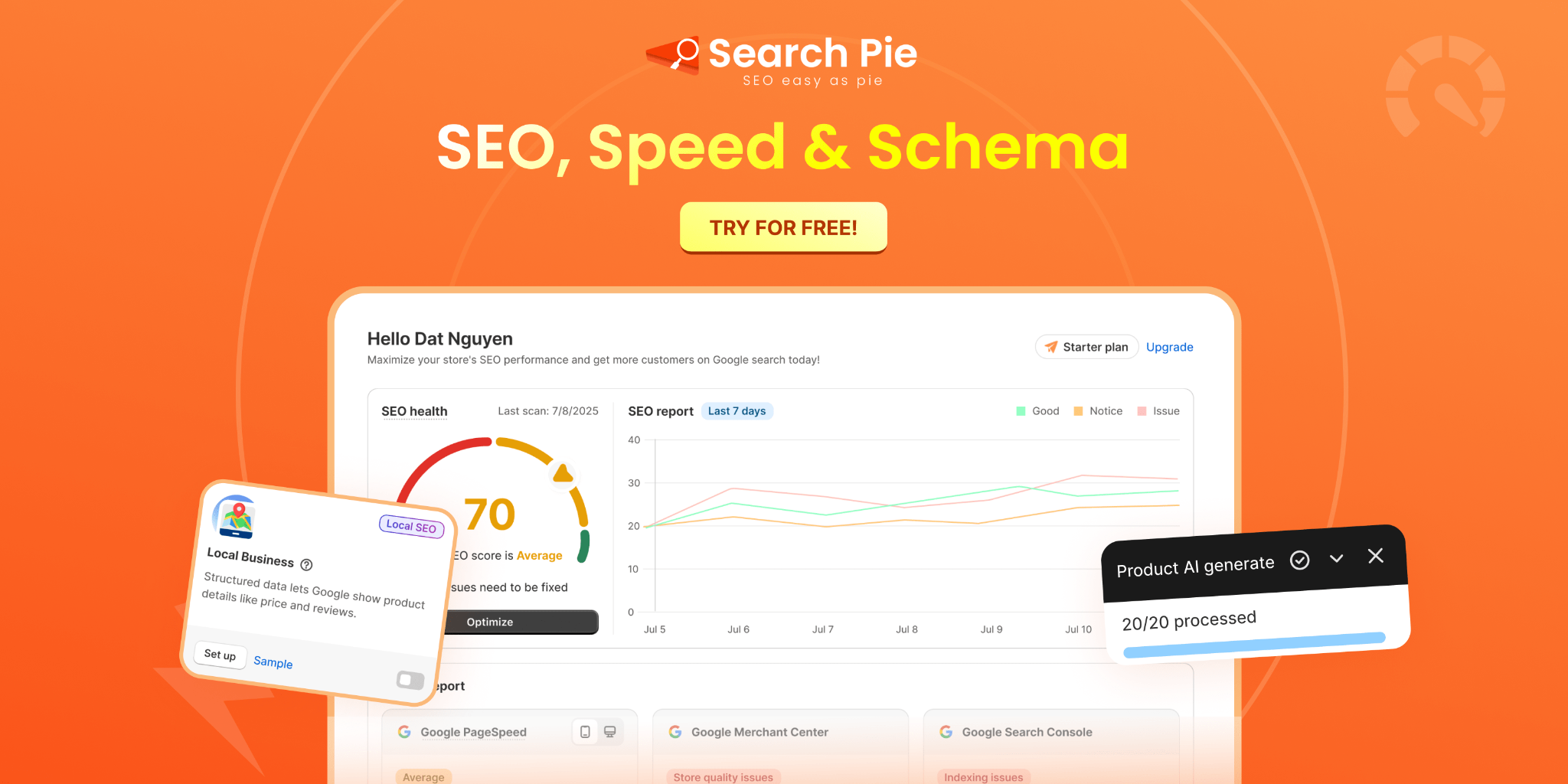
SearchPie: Image Optimization Built Into Your SEO Workflow
SearchPie is the most practical image optimizer Shopify app for merchants who want to handle Shopify image optimization as part of a broader SEO strategy rather than as a separate task.
SearchPie’s Image Optimization feature automatically compresses product images on upload, converts them to the most efficient format for each browser, and helps you manage alt text across your entire catalog from one place. Instead of opening each product individually to fix alt text, SearchPie lets you audit and update image alt attributes in bulk. For stores with large catalogs, this is one of the biggest time savers in any Shopify image optimization workflow.
For merchants also working on page speed scores, keyword rankings, and meta tag optimization, SearchPie handles all of these in one app. Shopify image optimization in SearchPie works alongside its other SEO features so every improvement compounds rather than sitting in separate tools.
Best for: Shopify merchants who want Shopify image optimization handled automatically as part of a wider SEO effort, without managing multiple apps.
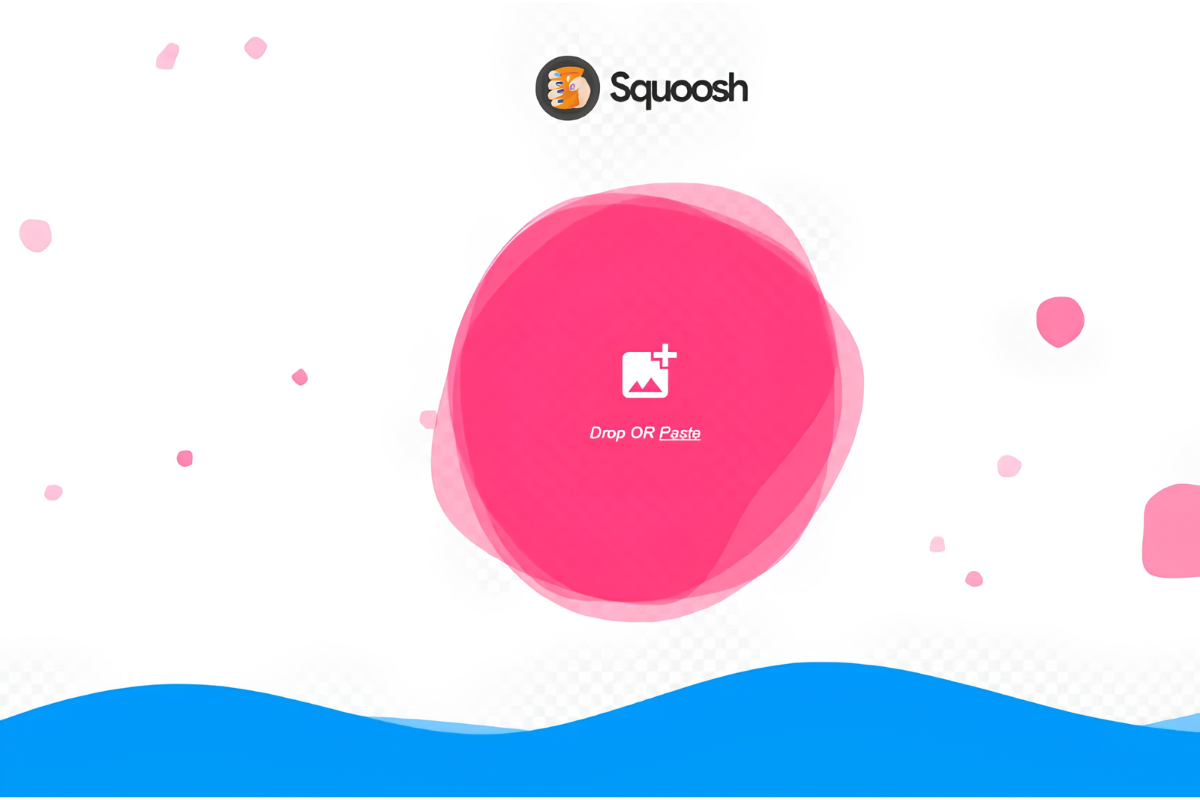
Squoosh (Free Browser Tool)
Squoosh is a free browser-based tool for compressing individual images before you upload them. Drag and drop an image, choose your format (WebP, AVIF, PNG, or JPG), and download the compressed version. No account needed. Useful for one-off Shopify image optimization tasks or when you want precise control over the compression level.
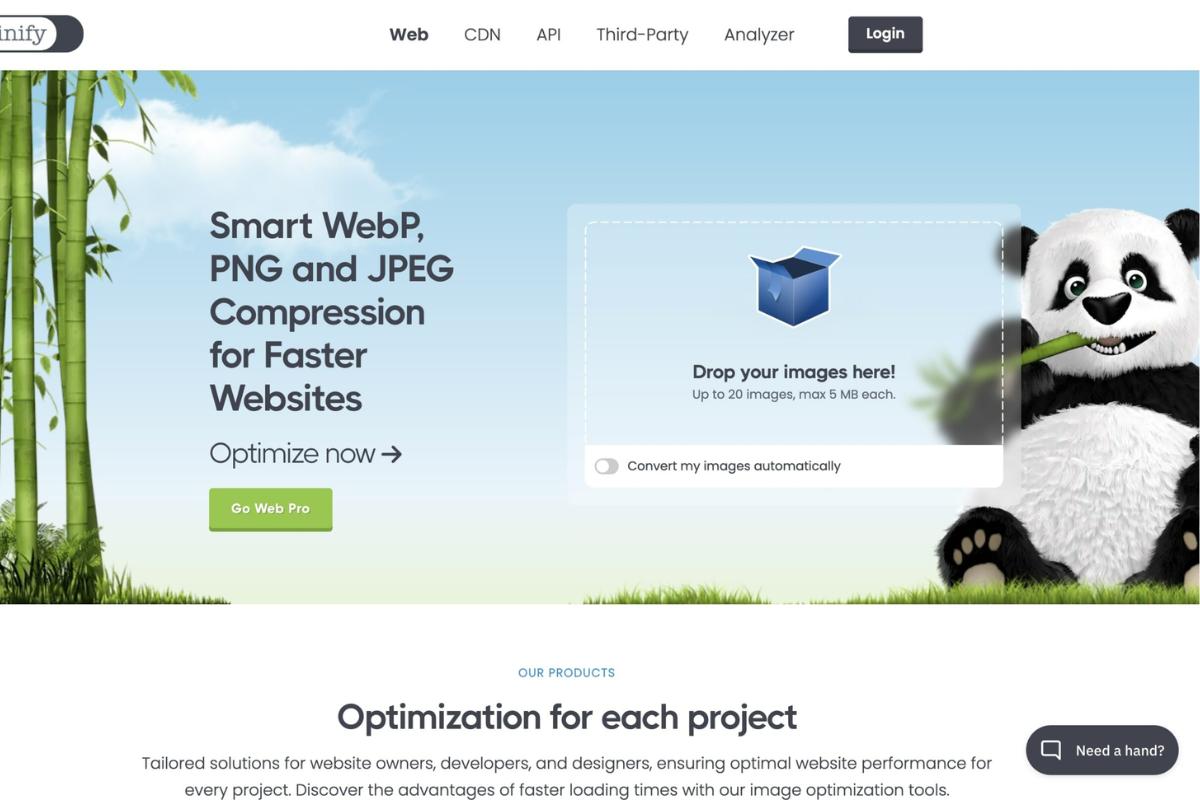
TinyPNG
TinyPNG reduces file sizes for PNG, JPG, and WebP images using smart compression. It also offers API access for developers who want to automate compression as part of a custom Shopify image optimization workflow. Shopify merchants typically use the web version for manual compression before uploading.
How to Know If Your Shopify Image Optimization Is Working
Timeline: Speed improvements from Shopify image optimization show up in Google PageSpeed Insights within days of publishing. Search ranking improvements from better alt text and file names take 6 to 10 weeks to reflect in Search Console data. Do not measure Shopify image optimization results at the two-week mark and draw conclusions.
FAQs
Shopify image optimization is the process of compressing and formatting images to improve page speed without reducing visual quality.
Optimized images load faster, which improves user experience, SEO rankings, and conversion rates.
WebP and AVIF offer the best balance of quality and file size, while JPG and PNG are still widely supported.
Use compression tools, resize images to the correct dimensions, and choose modern formats like WebP.
Not always, but apps can automate compression, lazy loading, and format conversion to save time and improve performance.