
Most Shopify merchants add product tags without a clear strategy. They create tags as they go, end up with dozens of inconsistently named labels, and wonder why their store is harder to manage than it should be. Some even believe product tags improve their SEO. The reality is more complicated than that.
Product tags are genuinely useful when used correctly. They make filtering easier for shoppers, power automated collections, and improve the overall browsing experience. Used without thought, they create thin, duplicate pages that waste Google’s crawl budget and quietly drag down your search rankings.
This guide covers exactly how Shopify product tags work, where they help and where they hurt, and six best practices to make them work in your favor.
Summary
- Section 1: What product tags are and how they differ from collections
- Section 2: Do Shopify product tags help or hurt your SEO
- Section 3: 4 genuine benefits of product tags when used correctly
- Section 4: How to add and manage product tags on Shopify
- Section 5: 6 best practices for a clean, effective product tagging strategy
- Section 6: How DECO helps you get more from your product tags
What Are Product Tags and How Do They Differ From Collections
Product tags are labels you apply to individual products inside your Shopify admin to group items with shared characteristics. Common examples include size, color, material, price range, season, or style. They appear in your product admin and can be used to power filter menus on collection pages, automate collections, and organize products for internal management purposes.
At first glance, product tags sound similar to collections. Both group products together. But they serve different purposes and work best in combination rather than as substitutes for each other.
A shoe store might use collections for top-level categories like Footwear and Accessories, with sub-collections for Women’s Sandals and Men’s Boots. Within those collections, product tags handle the finer filtering options like heel height, color, or material.
The two systems complement each other. Collections provide the broad structure. Product tags provide the granular filtering that helps shoppers narrow down to exactly what they want within that structure.
Do Shopify Product Tags Help or Hurt Your SEO
This is where most merchants get confused. The short answer is that product tags do not directly improve your SEO, and used carelessly, they can actively damage it.
Here is why. Every time you add a product tag to a product, Shopify automatically creates a new URL for that tag within each collection the product belongs to. The URL format looks like this:
yourstore.com/collections/your-collection/tagged/your-tag
If that product appears in five collections and you add one tag, Shopify creates five new pages. If you tag 20 products in 10 collections, you have potentially created hundreds of new pages. None of these tag pages are customizable. They contain no unique title tags, no custom meta descriptions, and no content beyond a filtered product list that duplicates your collection page.
You can check whether this problem affects your store by searching Google for:
site:yourstore.com intitle:Tagged
If Google has indexed your tag pages, you will see them appear in the results.
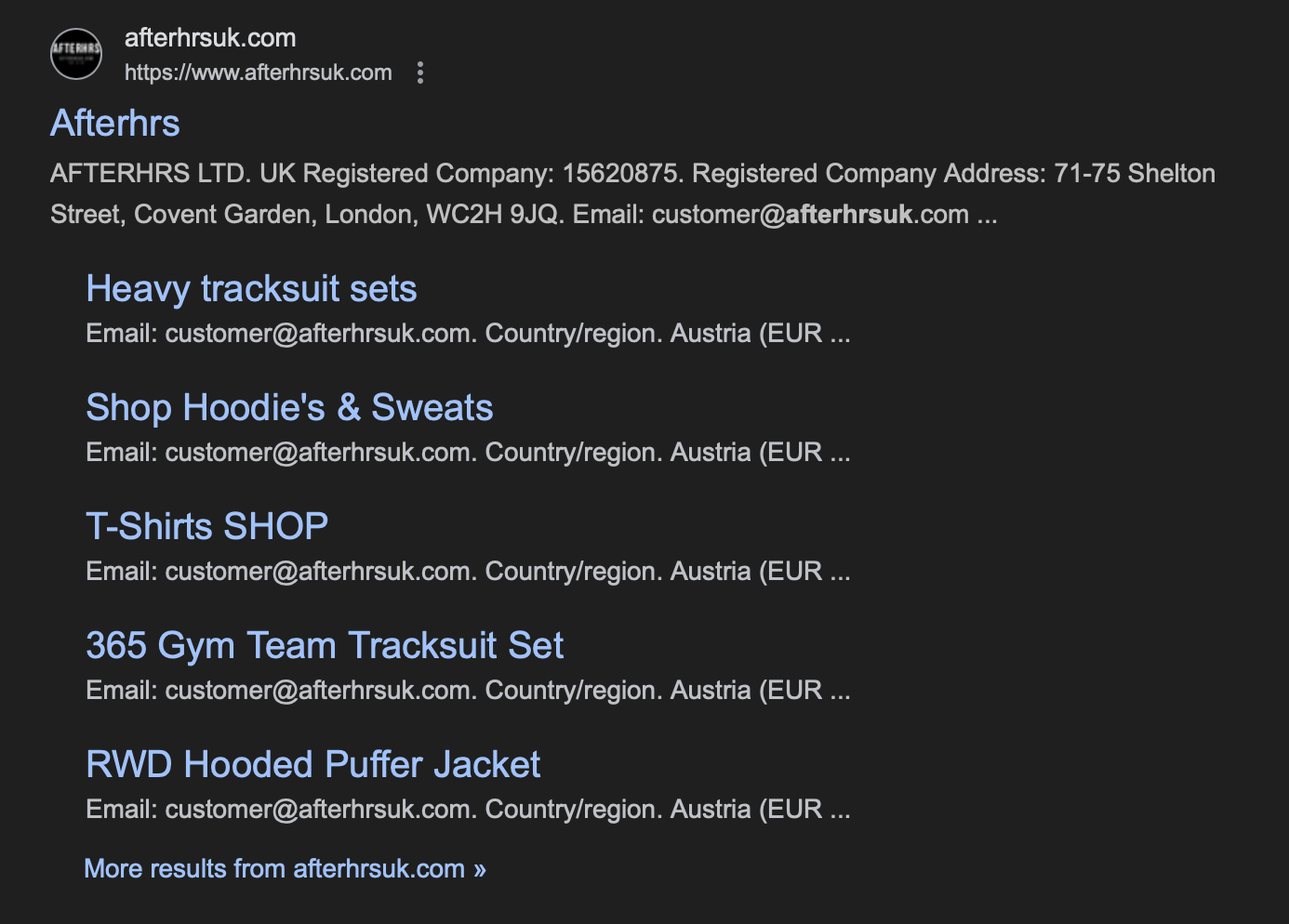
The SEO risks of unmanaged product tags:
The fix for this is covered in detail in the Shopify Product Tags SEO guide linked in the internal links section below. The short version is to either noindex tag pages, add canonical tags pointing to the main collection, or block tag pages in your robots.txt file.
4 Genuine Benefits of Product Tags When Used Correctly
Despite the SEO risks, product tags are worth using. The key is using them with intention and managing the technical side properly. Here are four areas where product tags genuinely add value.
Benefit 1: Better Filtering for Shoppers
Product tags power the filter menus that appear on collection pages. When a shopper can filter a 50-product collection by size, color, and material in one click, they find what they are looking for faster. That reduces friction, increases engagement, and directly improves your conversion rate.
A shopper who filters successfully to exactly what they want is far more likely to buy than one who scrolls endlessly through irrelevant products. Better filtering through product tags means better conversion rate from the same traffic.
Benefit 2: Internal Linking to Product Pages
Each product tag page, even though it should not be indexed by Google, still creates internal links to every product that carries that tag. Those internal links help search engines discover and understand the relationships between your product pages, which can support the rankings of individual product pages over time.
This benefit requires that you manage the tag pages correctly, using noindex tags or canonical tags so the tag pages themselves do not compete with your collections in search results, while still allowing the internal linking benefit to flow through.
Benefit 3: Automated Collections and Promotions
Product tags unlock automation that would otherwise require manual updates every time you run a promotion or create a seasonal collection. Tag a group of products with “summer-2026” and configure an automated collection that includes all products with that tag. The collection updates itself as you add or remove the tag.
The same logic applies to promotions. Tag specific products as “staff-picks” or “new-arrivals” and those groups update automatically across your store without any manual collection management.
Benefit 4: Improved Engagement Metrics
When shoppers can find what they want quickly through product tags filtering, they spend more time on your store, browse more products, and bounce less often. Lower bounce rates and higher session duration are engagement signals that Google uses as indirect ranking factors.
Product tags that improve the shopper experience therefore contribute to SEO indirectly through better engagement metrics, even if they do not help SEO directly through the tag pages themselves.
How to Add and Manage Product Tags on Shopify
Adding product tags to individual products is straightforward. Here is the step-by-step process.
Adding product tags to a single product:
- From your Shopify admin, go to Products and select the product you want to tag.
- Scroll down to the Tags section on the product page.
- Click the search box to see a list of existing product tags and select the ones that apply.
- To add a new tag, type it into the search box and click Add.
- Click Save.
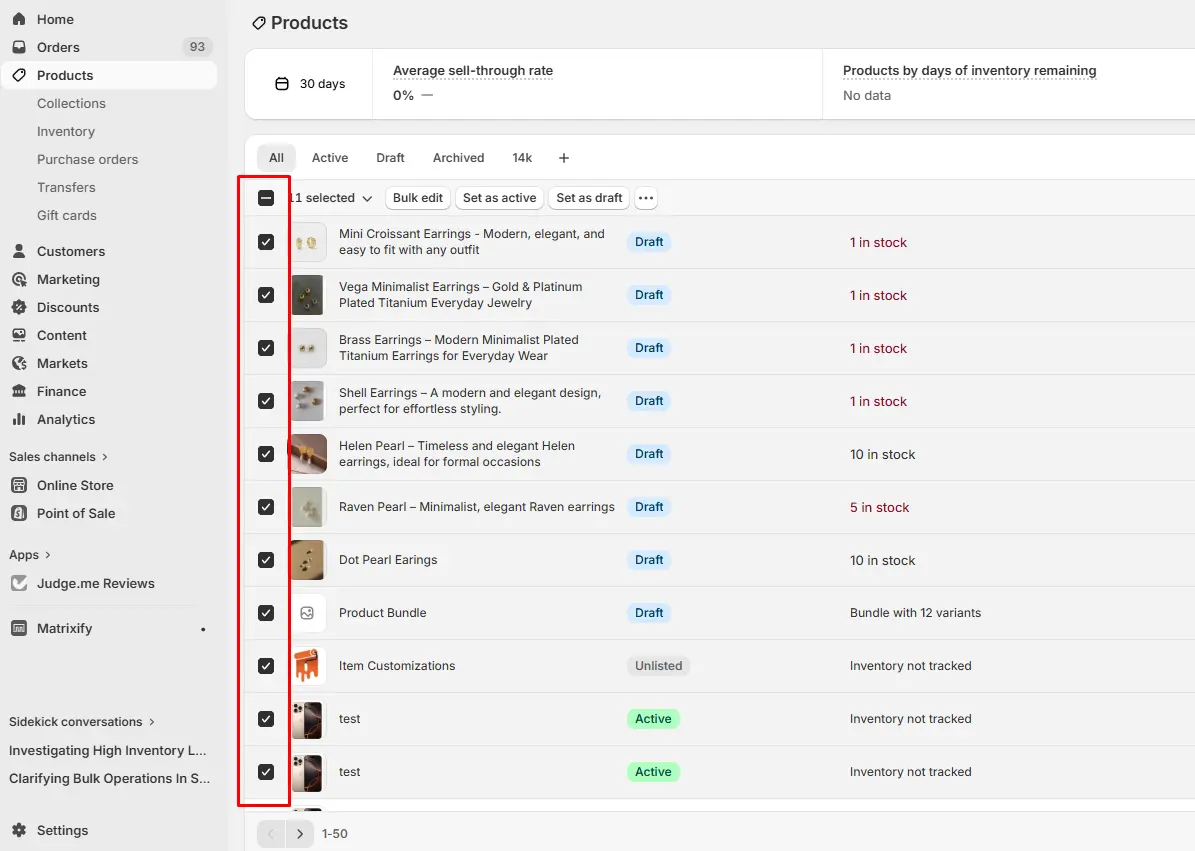
Adding product tags in bulk using the Shopify bulk editor:
- From your Shopify admin, go to Products and check the box at the top to select all products.
- Click Bulk edit.
- Click Columns and check the box next to Tags to add the Tags column to your bulk editor view.
- Click the Tags cell for each product you want to tag and select from existing tags or type a new one.
- Repeat for all products you want to update, then click Save.
The bulk editor is significantly faster when you need to apply or update product tags across a large catalog. For stores with hundreds of products, spending time setting up your tagging structure in the bulk editor upfront saves hours of individual product editing later.
6 Best Practices for a Clean Product Tagging Strategy
Getting the most from product tags requires a deliberate approach. These six practices keep your tagging system useful, manageable, and safe from the SEO risks that come with unstructured tagging.
Best Practice 1: Plan Your Tag Structure Before You Start
Approach product tagging with a hierarchy rather than adding tags randomly as you think of them. For a clothing store, a logical tag structure might look like:
Top level: T-shirts, Jeans, Outerwear
Size: XS, S, M, L, XL
Color: Red, Blue, Black, White
Material: Cotton, Linen, Denim
This hierarchy makes the filter menu logical for shoppers and makes your tag list manageable for your team.
Best Practice 2: Keep Tag Names Short and Specific
Aim for product tags that are no longer than 20 characters. If you cannot describe a group of products in 20 characters, the group may be too broad to be a useful tag. In that case, break it into two separate tags.
Good: short-sleeve, red, cotton
Avoid: Red-short-sleeve-T-shirts
Short, specific product tags are also easier to remember and apply consistently when tagging new products as your catalog grows.
Best Practice 3: Avoid Special Characters
Stick to letters, numbers, and hyphens in your product tag names. Avoid symbols, accented characters, and other special formatting. Shopify treats some special characters as identical, which means tags named small-black, small+black, and small_black may all be treated as the same tag, creating unexpected automation behavior.
Best Practice 4: Distinguish Internal Tags From Customer-Facing Tags
Some product tags are for internal use only, such as inventory management labels or supplier codes. Others are visible to shoppers through filter menus. Make sure customer-facing product tags are written the way a shopper would understand them.
An internal tag like BFCM25 makes sense to your team but means nothing to a shopper browsing your collection filters. A customer-facing version of the same tag would be Black-Friday-2025, which is immediately clear to anyone seeing it in a filter menu.
Best Practice 5: Fix the SEO Issues That Product Tags Create
The most important technical best practice for Shopify product tags is addressing the thin page problem before it compounds.
Implement one of these three approaches to prevent tag pages from hurting your SEO:
Add a noindex tag to all collection tag pages through your theme.liquid file so Google excludes them from its index while still following the internal links they contain.
Add a canonical tag pointing from each tag page to the main collection page, telling Google which version to index.
Block tag pages in your robots.txt file to prevent Google from crawling them entirely, which also saves crawl budget.
Best Practice 6: Use Tags for Promotions and Automation
Build promotions and seasonal campaigns around product tags rather than manual collection updates. Create a tag for your promotion, apply it to relevant products, and configure an automated collection and any supporting apps to recognize that tag. When the promotion ends, remove the tag and the collection updates itself automatically.
This approach saves significant manual work and reduces the risk of promotional products accidentally remaining on sale after a campaign ends.
How DECO Helps You Get More From Your Product Tags
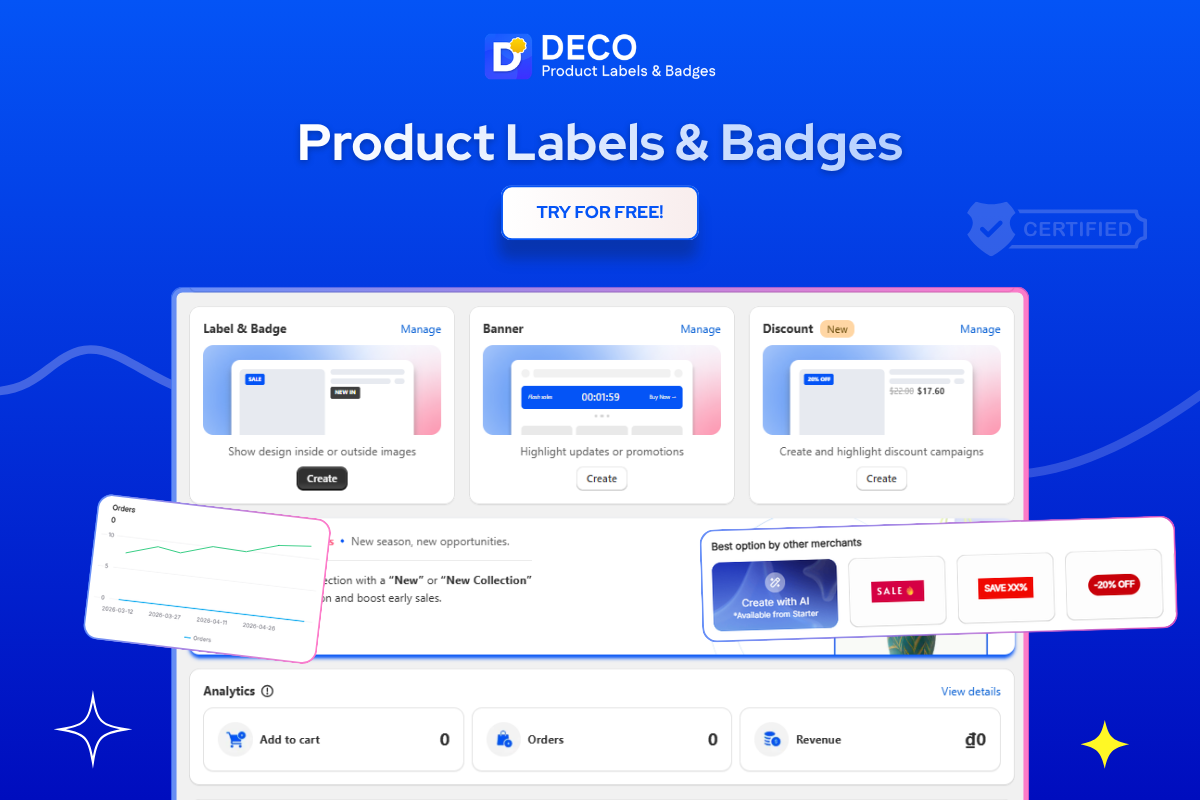
Product tags are most powerful when combined with on-page visual signals that draw shopper attention to the products those tags are designed to highlight. DECO Product Labels and Badges connects directly to this use case.
Promotion labels linked to your product tag strategy. When you use a product tag to mark items as part of a flash sale, a new collection drop, or a seasonal promotion, DECO lets you add visible sale badges, percentage-off labels, and custom promotional text directly onto those product images in your collection and product pages. The label makes the tagged promotion immediately visible to shoppers browsing without them needing to read the product title or filter the collection first.
Countdown Timer labels for time-limited tag-based promotions. If you are running a promotion tied to a specific product tag, such as a 48-hour flash sale on items tagged “weekend-deal,” DECO’s Countdown Timer labels display a live countdown directly on those product pages. The combination of a promotion label and a visible timer creates the urgency that moves hesitant shoppers from browsing to buying.
Low Stock and Selling Fast labels for tag-based scarcity messaging. Product tags are often used to mark items that are limited in quantity, such as “limited-edition” or “final-stock” tagged products. DECO’s stock labels display accurate, real-time inventory signals on those product pages, reinforcing the scarcity message that your tag is meant to communicate. A shopper who sees “Only 2 Left” on a limited-edition tagged product has a far stronger reason to buy immediately.
Banner Bars for tag-based campaign visibility. When you launch a promotion tied to a specific product tag group, DECO’s Banner Bars let you announce that campaign across every page of your store. A shopper browsing your homepage sees the promotion in the banner bar before they ever reach the tagged collection, which increases the campaign’s reach without requiring any additional ad spend.
Mobile-optimized label sizing. DECO allows separate label size configurations for mobile and desktop displays. This means the badges and labels highlighting your product tag promotions never accidentally overlap the Add to Cart button on smaller screens, protecting the mobile conversion rate of your tag-based campaigns.
Best for: Shopify merchants who use product tags to run promotions, manage seasonal collections, or highlight limited inventory, and who want those tag-based groupings to be visually prominent and conversion-optimized across every product and collection page without any code changes.
FAQS
You can use product tags to trigger automatic collections, filters, app rules, and theme logic. Many Shopify apps also use product tags to display labels, badges, or promotions based on specific conditions.
Shopify product tags are labels that help organize products and automate tasks like collections, filtering, inventory management, and marketing campaigns. They are not visible to customers unless your theme or apps display them.
Go to **Products** in your Shopify admin, select a product, remove the unwanted tag, and save your changes. You can also edit tags in bulk using Shopify’s bulk editor.
Open a product in your Shopify admin, enter one or more tags in the **Tags** field, and save. You can also add tags to multiple products at once using Shopify’s bulk editing tools.
Use product tags to organize your catalog, create automated collections, improve product filtering, trigger app automations, and personalize the shopping experience with dynamic badges or promotions.