
Your Black Friday collection is live, the discounts are set, and the banners are up. Then a shopper searches for your product and sees a competitor. Your page is not in Google at all.
This happens more often than most merchants expect. A product can be published and still missing from search results. Google first has to find the page, read it, and decide to store it in its index. Each step can fail quietly.
This guide explains how to check whether your BFCM products are indexed, the most common reasons they are not, and the steps that help Google find them before the sale. It also covers what to do when a product still does not appear. No method can guarantee that Google indexes a page on a set date, so treat the steps below as ways to remove blockers and speed up discovery.
Quick answer: Why are my Black Friday Shopify products not showing on Google? Usually because of a noindex tag, a robots.txt block, a canonical pointing elsewhere, weak internal links, or a page Google has not crawled yet. Check each product in Google Search Console, fix the blocker, then request indexing for your most important URLs.
Why Your BFCM Products May Not Appear on Google
Google does not index every page it finds. It works in stages. First it discovers a URL, through a sitemap, a link, or a request. Then it crawls the page to download it. Last, it decides whether the page is worth storing in its index.
Black Friday products face extra risk. They are often new, they have thin descriptions, and they sit in collections that were created in a hurry. Google may see them as low value, or it may not reach them before the sale ends.
Two terms matter here. Indexing means Google has stored the page. Ranking means Google shows the page for a search. A page can be indexed and still rank poorly. A page that is not indexed cannot rank at all, so indexing comes first.
How to Check If Shopify Product Pages Are Indexed
Start with the pages that matter most for the sale: your Black Friday collection, your top 20 products, and any landing page you promote in ads or SMS.
Google Search Console URL Inspection
URL Inspection is the most direct check. It shows what Google knows about one specific page.
- Open Google Search Console and select your store property.
- Paste the full product or collection URL into the search bar at the top.
- Read the status: “URL is on Google” means the page is indexed. “URL is not on Google” means it is not.
- If the page is not indexed, open the reason in the details. It often names the blocker.
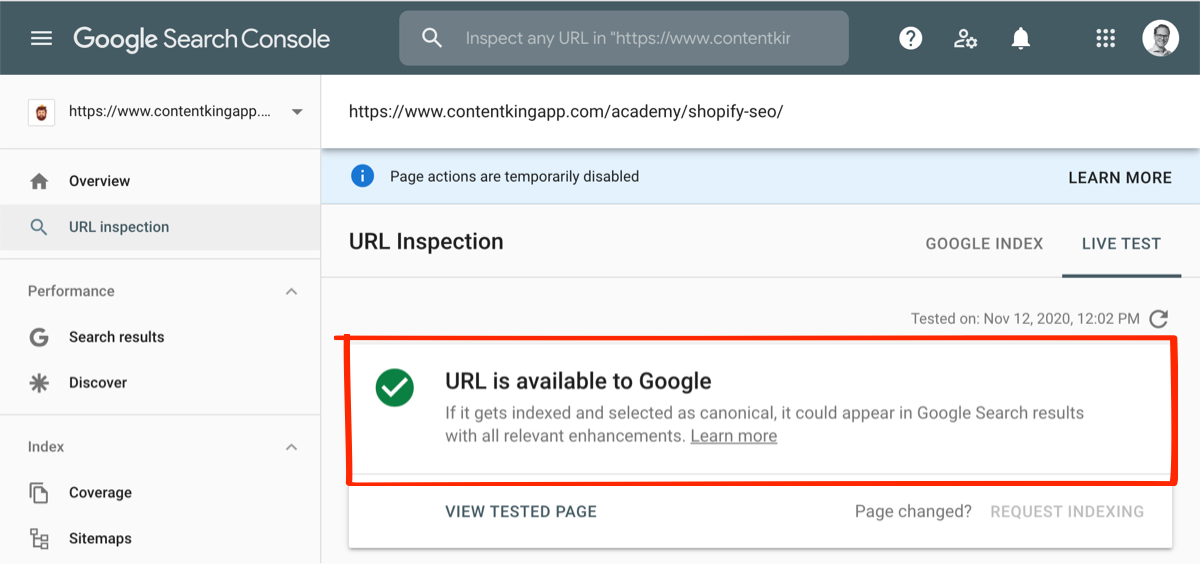
- Select Test live URL to confirm that Google can reach the page right now.
Test live URL checks the current version of the page. It does not prove that the page is indexed. A live test can pass while the indexed copy is still old or missing.
Indexing status vs ranking
Do not confuse these two. A product that shows “URL is on Google” but never appears for your target search has an indexing success and a ranking problem. A product that shows “URL is not on Google” has an indexing problem, and no amount of keyword work will fix it until the blocker is removed.
Check ranking separately in the Performance report, by searching for the product’s query and filtering by page. Indexing is a yes-or-no question. Ranking is a position in a list.
Common Reasons Shopify Products Aren’t Indexed
Most indexing problems fall into five groups. Check them in this order, because the first two are the most common causes on Shopify stores.
Noindex tags
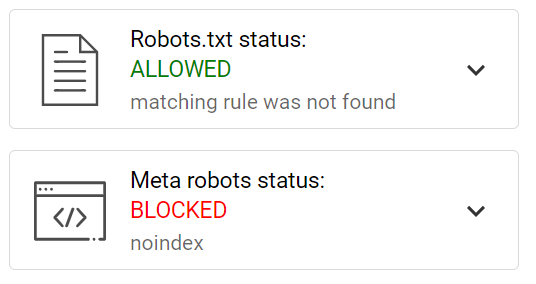
A noindex tag tells Google not to store the page. Sometimes it is intentional, for example on a thank-you page. Sometimes it is a mistake from a theme, app, or SEO setting copied from another store.
Open the page source, press Ctrl+F, and search for “noindex”. If you find a robots meta tag with noindex, remove it or switch the setting off in the app that adds it. Check your collection and product templates, because one template can affect every product.
robots.txt blocks
The robots.txt file tells crawlers which paths they may visit. A rule that blocks /products/ or /collections/ stops Google from reading those pages. Visit yourstore.com/robots.txt and read every Disallow line.
Shopify manages the default file, but merchants sometimes add custom rules. Remove any rule that blocks your sale pages. Note that a blocked page can still appear in results with no description, so a block is never a clean way to hide content.
Canonical tags
A canonical tag tells Google which version of a page is the main one. Shopify sets canonicals for collection-path product URLs so they point to the main product URL. That is normal and usually correct.
Problems start when a canonical points to the wrong page. A product page that canonicals to a different product, or to a homepage, may be dropped from the index. Check the canonical tag in the page source and confirm it points to the same URL, or to the main product URL when the page is a collection-path version.
Duplicate content
Google often groups near-identical pages and indexes only one. Common sources on Shopify are the same product in several collections, tag-filtered URLs, and variant pages with almost no unique text.
Give each important product a unique title, a unique meta description, and a description with real detail. For tag pages, decide whether they add value. If they do not, apply noindex to them so Google focuses on your product and collection pages.
Crawl and discovery issues
A new product with no internal link and no sitemap entry may never be found. Google may also crawl it very late if your site is large and slow. Crawl and discovery problems are often the cause of “URL is not on Google” for pages that are otherwise clean.
Crawl problems often show up as slow server responses or many errors in the Crawl stats report. Fix those before you expect fast indexing.
How to Help Google Discover and Index BFCM Products
Once blockers are removed, you can help Google find the pages faster. None of these steps guarantees a set date. They improve the odds and remove friction.
Check XML sitemap
Shopify generates a sitemap at yourstore.com/sitemap.xml and lists your products, collections, and pages. Open it in a browser and confirm your Black Friday collection and key products appear.
In Search Console, go to Sitemaps and check that the sitemap is submitted and shows no errors. If a product is missing from the sitemap, it is usually because it is unpublished, hidden from the online store, or set to noindex. Fix the cause, not the sitemap.
Fix technical indexing blockers
Work through the list in the previous section for every important URL. Pay special attention to templates. A fix in the product template helps hundreds of products. A fix on one page helps one page.
Also check for redirect chains and 404 errors on sale pages. Google follows redirects, but chains slow crawling. A 404 on an old promo URL gives Google nothing to index.
Strengthen internal linking
Google finds new pages by following links. A product that only appears in a collection with no link from the homepage, menu, or related pages may wait a long time to be crawled.
Link the Black Friday collection from your homepage banner and main menu. Link each sale product from its collection and from related products. Use descriptive anchor text, such as “Black Friday women’s running shoes”, rather than “click here”.
Request indexing for important URLs
URL Inspection includes a Request indexing button. Use it for your Black Friday collection, your top products, and any sale page you promote. Do not request indexing for every variant or every product at once, because it does not speed up the queue for the whole site.
After you request it, the status can take days to update. Check back after a few days. Requesting indexing signals that a page is ready. It does not force Google to store it.
What to Do If Products Still Aren’t Indexed
If a product is still missing after you fixed the blockers and requested indexing, work through these steps before you assume the problem is Google’s.
- Recheck the live URL in URL Inspection. Confirm there is no noindex, no robots block, and the canonical is correct.
- Confirm the page has unique, useful content. A title, a short description, and one image are often not enough.
- Add a link from a high-traffic page, such as your homepage or a popular blog post.
- Look at the Pages report in Search Console for the exact reason, such as “Crawled, currently not indexed” or “Discovered, currently not indexed”.
- Give the page time. Google may still be working through a queue, especially on newer or larger stores.
“Crawled, currently not indexed” means Google visited the page and chose not to store it. That usually points to content quality or duplication, not a technical error. “Discovered, currently not indexed” means Google knows the URL but has not crawled it yet. Improving links and content helps both, but timing is outside your control.
If a product is intentionally hidden, such as a retired item, leave it out of the index. Redirect it to a relevant live product instead of letting it sit as a dead end.
How Can SearchPie Help Your BFCM Products Get Indexed?
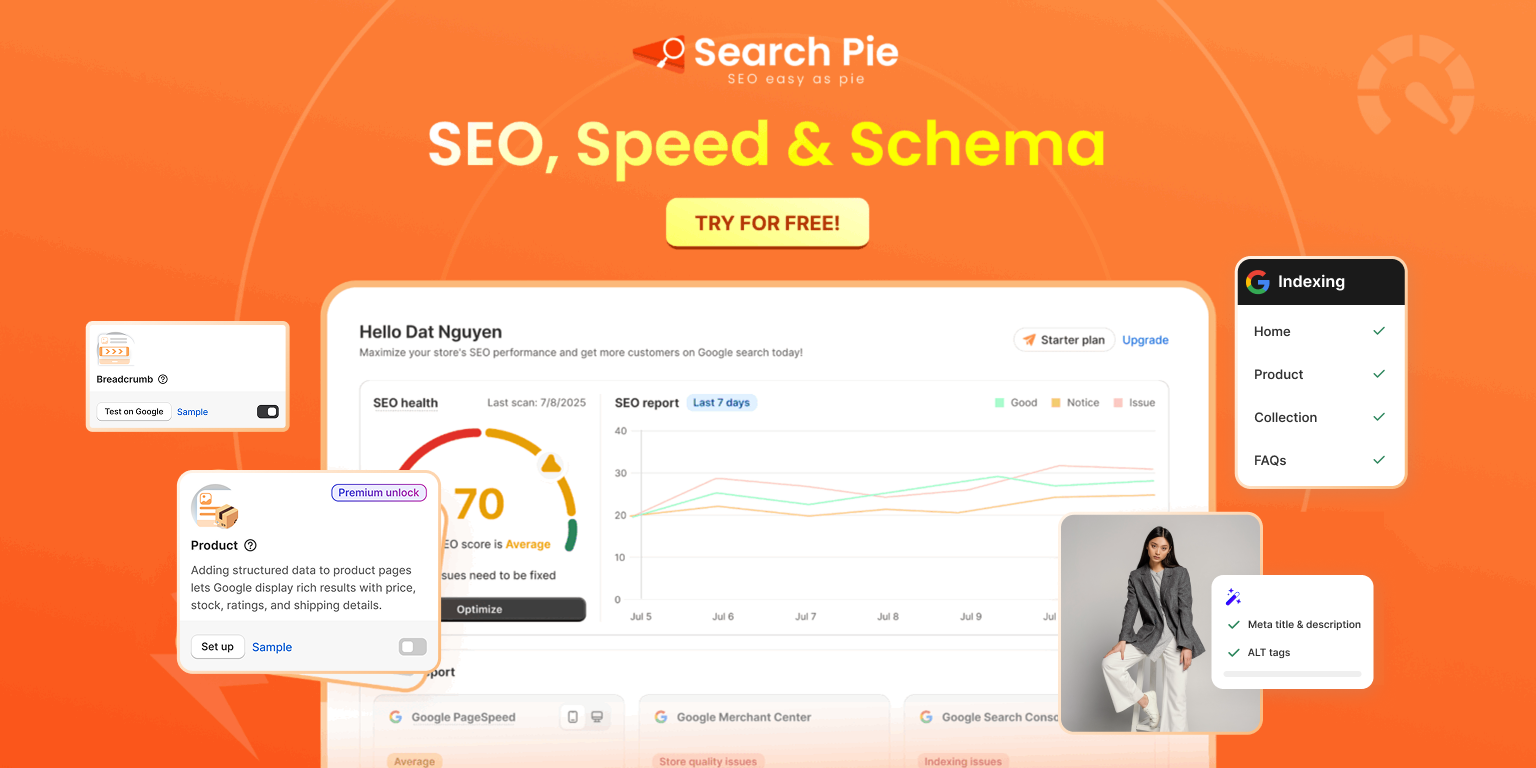
Checking and fixing indexing across hundreds of products is slow by hand. SearchPie is an all-in-one Shopify SEO and speed platform by PieLab. It holds the Built for Shopify badge, a 4.9 rating from over 2,440 merchant reviews, and 24/7 live expert support.
Technical SEO and Indexing. SearchPie takes care of the heavy backend work by actively monitoring whether each URL across your store is properly indexed. Through a direct connection with Google Search Console, it automatically submits fresh sitemaps and triggers instant indexing requests the moment new products or collections go live. It also integrates with IndexNow for rapid discovery, detects 404 errors, and manages 301 redirects in bulk. On the Premium and Enterprise tiers, this process is fully automated to redirect broken links the moment they appear, making it an essential safeguard for any growing catalog, especially stores rolling out late-season product drops.
Structured Schema Markup. SearchPie injects Product schema directly into your code, translating key details like titles, live prices, inventory status, and star ratings into a format Google reads effortlessly to trigger rich snippets. Premium includes core schemas: Product, Blog Post, FAQ, Collection. Enterprise adds all six schema types (adds Local Business, Loyalty), which suits large catalogs with many collections.
Image SEO and Page Speed. Heavy visuals slow down loading speeds and delay crawler activity. SearchPie compresses product images in bulk, optimizes new uploads automatically, and keeps a one-click restore option for your original files. It also applies descriptive ALT tags at scale via smart templates or AI descriptions, providing an easy performance win for media-heavy collection pages.
SearchPie also readies your store for modern search behaviors. Its Answer Engine Optimization (AEO) formats product data so conversational engines like ChatGPT Search, Perplexity, and Google AI Overviews can cite your brand. Built-in speed tools add lazy loading and link preloading to boost performance, while rank trackers monitor daily keyword positions across titles and headings. For day-to-day operations, the platform includes multilingual AI content generation for descriptions and metadata, a backlink community for guest posting, and direct integrations with Google Merchant Center to fix feed errors and Google Business Profile to capture local shoppers.
Choosing the Right Plan: The free Starter plan is best for small stores running initial audits to spot site blockers. Premium fits growing merchants managing dozens or hundreds of products that need automated redirects and standard schema. Enterprise is designed for large, multilingual catalogs requiring the full schema suite, dedicated technical roadmaps, and hands-on troubleshooting.
BFCM Product Indexing Checklist
Check indexing
- Black Friday collection shows “URL is on Google” in URL Inspection
- Top 20 products are checked in URL Inspection
- Pages report reviewed for “Crawled, currently not indexed” and “Discovered, currently not indexed”
Remove blockers
- No noindex tag on products, collections, or key pages
- robots.txt does not block /products/ or /collections/
- Canonical tags point to the correct URL
- Tag pages with no unique value are set to noindex
- Duplicate meta titles and descriptions are fixed on key pages
Help discovery
- Sitemap includes the Black Friday collection and key products
- Sitemap is submitted in Search Console with no errors
- Black Friday collection is linked from the homepage and main menu
- Each sale product is linked from its collection and related items
- Indexing is requested for the collection and top products only
Protect the sale
- Old promo URLs redirect to live pages
- Images are compressed and have ALT text
- Recheck indexing status a few days after changes
FAQs