
According to comprehensive data from the Baymard Institute’s e-commerce research, 19% of shoppers abandoned a purchase in the past three months because they did not trust the site with their payment information. That is nearly one in five potential sales lost not because of price, not because of product quality, but because the store did not look safe enough to buy from.
A Shopify trust badge solves this directly. It is a visual signal that tells shoppers your store is secure, your policies are clear, and your payments are protected. The right Shopify trust badge in the right place can be the difference between a completed order and an abandoned cart.
This guide covers the five types of Shopify trust badges, where to place them for maximum impact, how to add trust badges to Shopify without touching any code, and a clear comparison of the best Shopify trust badge apps available in 2026.
Summary
- Section 1: What a Shopify trust badge is and why it matters for conversions
- Section 2: The 5 types of Shopify trust badges and where to place each one
- Section 3: How to add trust badges to Shopify step by step
- Section 4: The best Shopify trust badge apps compared in one table
- Section 5: DECO trust badges and why they work differently from standard badge apps
What Is Shopify Trust Badge and Why Does It Matter?
A Shopify trust badge is a digital icon displayed on your store to reduce shopper hesitation and signal that purchasing is safe. These badges tell shoppers that their payment information is protected, that your store operates transparently, and that your policies are customer-friendly.
Trust badges are not just decoration. They directly address the fears that cause cart abandonment. Security concerns, unfamiliar payment methods, uncertainty about returns, and skepticism about product claims are all purchase barriers that a well-placed Shopify trust badge can remove in seconds.
The business case for adding trust badges is straightforward. 82% of customers say free returns are important to their purchase decision. Shoppers who see a money-back guarantee badge are more likely to buy because the risk of being wrong feels lower. Shoppers who see recognized payment icons like Visa, PayPal, and Apple Pay feel confident their preferred method is accepted and their data is safe.
Every page where a shopper might hesitate is a page where a Shopify trust badge can help. Product pages, cart pages, and checkout pages all benefit from the right combination of trust signals placed at the exact moment doubt appears.
The 5 Types of Shopify Trust Badge and Where to Place Each One
Not every Shopify trust badge serves the same purpose. Understanding which type to use and where to place it is what separates a trust badge strategy that converts from one that clutters your store without impact.
Type 1: Security Trust Badges
Security trust badges tell shoppers that your store is safe to buy from. Secure checkout badges, SSL certificate seals, and encrypted payment badges all communicate that sensitive personal and payment data is protected during the transaction.
These are the most important type of Shopify trust badge for reducing checkout abandonment. Shoppers who reach the payment step and feel uncertain about security will leave. A visible security badge at that moment prevents the drop-off.
Most browsers already warn users if a site is not encrypted, so having an SSL certificate is a baseline requirement. Shopify includes a free SSL certificate with every store, which means the foundational security is already in place. The badge makes that invisible security visible to shoppers.
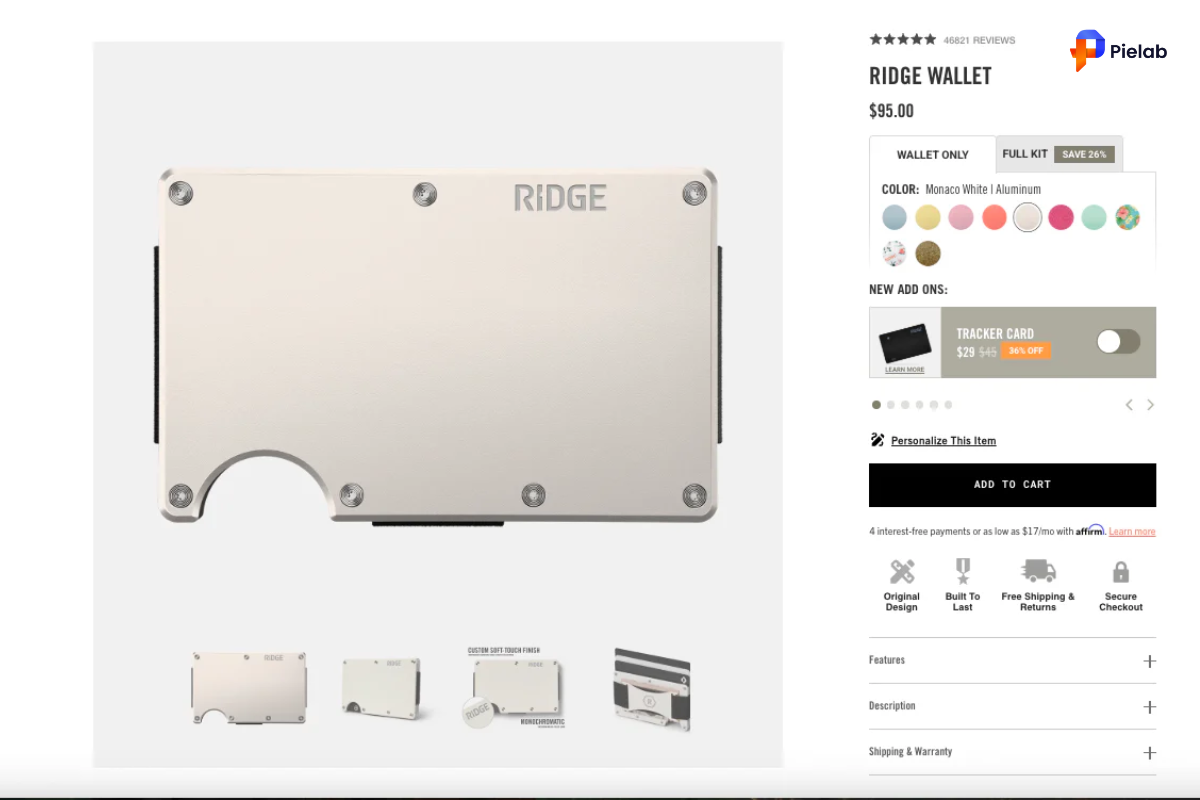
Best placement: Checkout pages, product pages near the Add to Cart button, and cart drawer.
Type 2: Payment Trust Badges
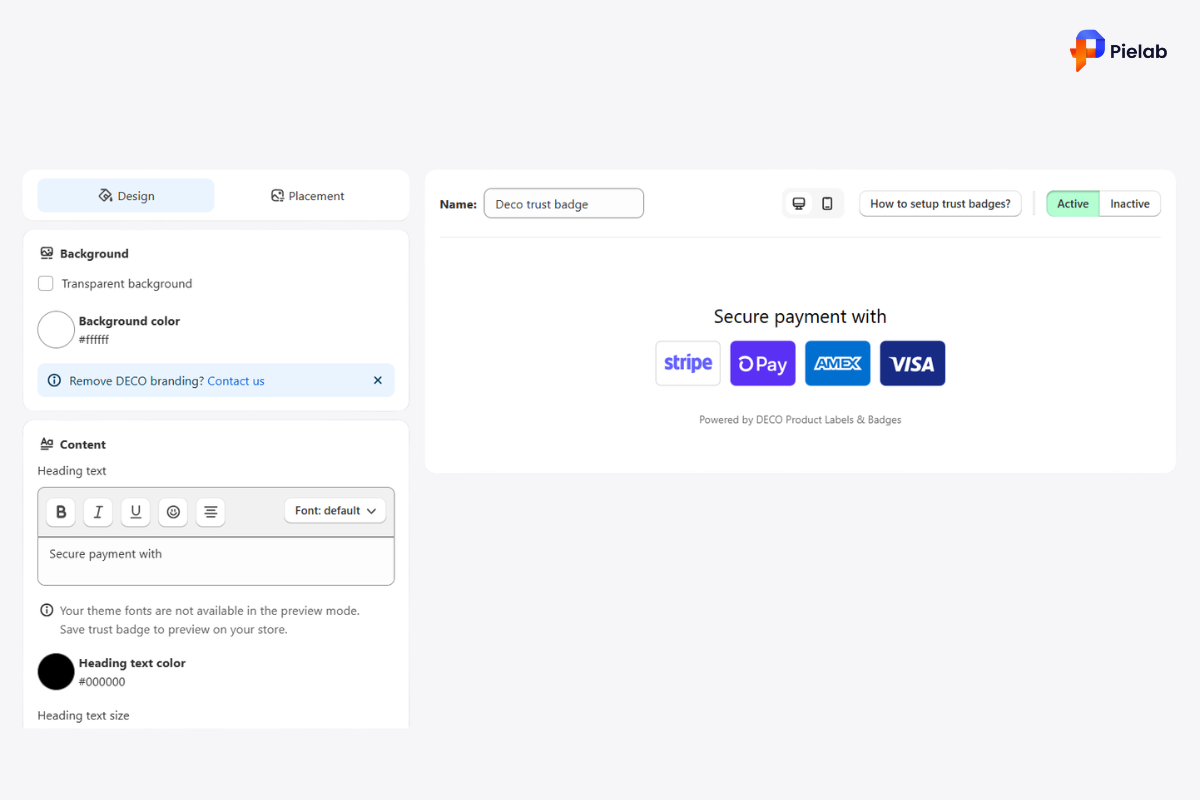
Payment trust badges show shoppers which payment methods your store accepts. Visa, Mastercard, American Express, PayPal, Apple Pay, Google Pay, and Shop Pay all have recognizable badge icons that communicate two things at once: which method the shopper can use, and that your store is affiliated with trusted financial brands.
A shopper who does not see their preferred payment method listed may abandon checkout rather than proceed with an unfamiliar option. Displaying payment icons eliminates that uncertainty before the shopper reaches the payment step.
Best placement: Product pages below the Add to Cart button, cart pages, and checkout pages near payment input fields. Many stores also display payment badges in the footer so they are visible site-wide.
Type 3: Endorsement Trust Badges
Endorsement badges come from recognized third parties who have verified something about your business or products. The Better Business Bureau Accredited Business badge, B Corp certification, Google Verified Customer Reviews, and industry-specific seals like the National Eczema Association approval all fall into this category.
These are the most powerful type of Shopify trust badge for building brand credibility because they represent external verification rather than self-promotion. A shopper who sees that a respected organization has evaluated and approved your store or product has a reason to believe your claims without needing to verify them independently.
Obtaining endorsement badges typically requires submitting an application and undergoing a review process. Once approved, the accrediting body provides badge code or image assets to display on your store.
Best placement: Product pages for product-specific endorsements, footers for business-wide accreditations, and homepage above the fold for maximum visibility.
Type 4: Policy-Specific Trust Badges
Policy badges communicate your store’s customer-friendly policies at a glance. Free shipping, free returns, money-back guarantee, and satisfaction guarantee are the most commonly used policy-specific Shopify trust badges.
These badges do not require third-party verification because they represent your own store policies. You create them yourself or use a Shopify trust badge app to add them quickly. They are particularly effective for high-consideration purchases where shoppers research carefully before committing. A shopper on the fence about a $150 product is much more likely to buy when they can see a “30-Day Money Back Guarantee” badge directly on the product page.
Best placement: Product pages for product-specific policies like warranties, checkout pages for shipping and returns policies, and cart pages for money-back guarantees.
Type 5: Media Mention Badges
Media mention badges display logos from publications and outlets that have featured or reviewed your store or products. “As seen in Forbes,” “Featured in Vogue,” or “Reviewed by TechCrunch” all carry the credibility of the publication’s brand onto your store page.
These Shopify trust badges are particularly effective for new stores or new product launches where shoppers have no personal experience with your brand. Seeing a familiar media logo associates your store with established, credible sources the shopper already trusts.
Best placement: Homepage in a featured media strip, product pages for product-specific coverage, and landing pages for ad campaigns targeting cold audiences.
How to Add Trust Badges to Shopify
Learning how to add trust badges to Shopify is straightforward using a dedicated app. Here is the step-by-step process that works for any Shopify store without requiring theme code changes.
Steps:
- Go to the Shopify App Store and install a Shopify trust badge app. The app comparison in Section 4 covers the best options available in 2026.
- Open the app from your Shopify admin dashboard and browse the available badge library. Most apps include hundreds of pre-designed badges covering security, payment, policy, and endorsement categories.
- Select the badges that match your store’s actual policies and payment methods. Only display badges that are accurate. Showing a payment badge for a method you do not accept, or a guarantee badge for a policy you do not honor, erodes trust rather than building it.
- Choose the placement for each badge. Most Shopify trust badge apps let you select which page types display each badge: product pages, cart pages, checkout pages, or specific custom positions.
- Customize the badge size and color to match your store’s design. For mobile, ensure badge size is set so icons do not overlap important buttons like Add to Cart or Buy Now.
- Save and preview your changes on both desktop and mobile before publishing.
Time to complete: 15 to 30 minutes depending on the app and how many badges you want to configure.
Important: After adding trust badges, check your checkout pages specifically to confirm the badges display correctly and do not interfere with payment fields or the checkout button on mobile screens.
Crucial Check: Always double-check your mobile layout after installation to guarantee that badges do not cover input fields or overlap the checkout button. To manage this step systematically alongside your other storefront updates, track your progress within a master SEO checklist template.
Best Shopify Trust Badge Apps Compared
Choosing the right Shopify trust badge app determines how flexible, fast, and well-designed your badges look across your store. Here is a direct comparison of the top options available in 2026.
Each app covers the basics of how to add trust badges to Shopify. The key differences come down to how much customization you need, whether you want badges that respond to product conditions like stock level or discount percentage, and whether you want payment icons to appear inside buttons rather than just below them.
DECO Trust Badges and Why They Work Differently
Most Shopify trust badge apps let you place payment icons and security seals in fixed positions on your product pages. DECO goes further by integrating trust signals directly into the purchase flow rather than sitting alongside it.
Payment Trust Badges inside the Buy Now button. DECO’s most distinctive trust badge feature is the ability to embed payment method icons directly inside your “Buy Now” or “Add to Cart” button. Instead of a shopper having to look below the button for payment icons, they see Visa, Mastercard, PayPal, and other accepted methods at the exact moment they are about to click. This placement eliminates the last moment of hesitation before the purchase action.
Custom regional payment icons. Standard Shopify trust badge apps offer a fixed library of global payment methods. DECO’s team can design and add custom payment icons for regional payment methods including GCash, Tamara, Mada, Bit, and other market-specific options. For merchants selling in markets where local payment methods are preferred, showing the right icons immediately removes a major barrier to purchase.
Mobile-optimized badge sizing. DECO allows you to set separate badge sizes for desktop and mobile screens. This means trust badges on smaller screens never overlap important buttons or crowd the layout, which is one of the most common problems with Shopify trust badge implementations on mobile.
Countdown Timer labels alongside trust badges. DECO combines trust signals with urgency labels in a single system. A product page can display payment trust badges alongside a countdown timer showing when a promotion expires and a stock label showing low availability. The combination of security reassurance and purchase urgency on the same product page creates a significantly stronger conversion environment than either element alone.
Banner Bars for site-wide trust messaging. DECO’s Banner Bars let you display store-wide trust messages like “Free returns within 30 days” or “Secure checkout guaranteed” across every page of your store without requiring shoppers to reach the product page to see them.
Best for: Shopify merchants who want payment trust badges integrated directly into the purchase button experience, regional payment method support, and urgency labels working alongside trust signals in one system without managing separate apps.
Ready to add trust badges that actually convert?
FAQs
You can add a trust badge to your Shopify store using apps, theme sections, or custom code to display payment icons, guarantees, and security badges. Most Shopify themes and trust badge apps allow you to place trust badges directly below the Add to Cart button to improve shopper confidence before checkout. A trust badge icon is a visual symbol that helps reassure shoppers about security, payments, guarantees, or business credibility on a website. No. Well-known trust badges such as PayPal, Visa, Mastercard, or SSL security badges are generally more effective because shoppers already recognize them. Trust badges work best near Add to Cart buttons, checkout sections, payment forms, and cart pages where shoppers make purchase decisions.