
Most shoppers who visit your Shopify store will leave without buying. The majority will never come back. A Shopify newsletter popup gives you one last chance to capture their email address before they go, so you can bring them back through email marketing when they are ready to buy.
A well-timed Shopify newsletter popup does more than just collect emails. It communicates your value proposition, delivers an incentive that makes signing up feel worthwhile, and starts a relationship with a potential customer who might not have been ready to purchase on their first visit. Email marketing can increase conversion rates up to 18 times compared to other channels, but only if you have a list to send to.
This guide covers exactly how to add a pop up on Shopify, what makes a newsletter popup convert, real examples from successful brands, and how to make your Shopify pop up work even harder with the right tools.
Summary
What Is a Shopify Newsletter Popup and Why Does It Matter
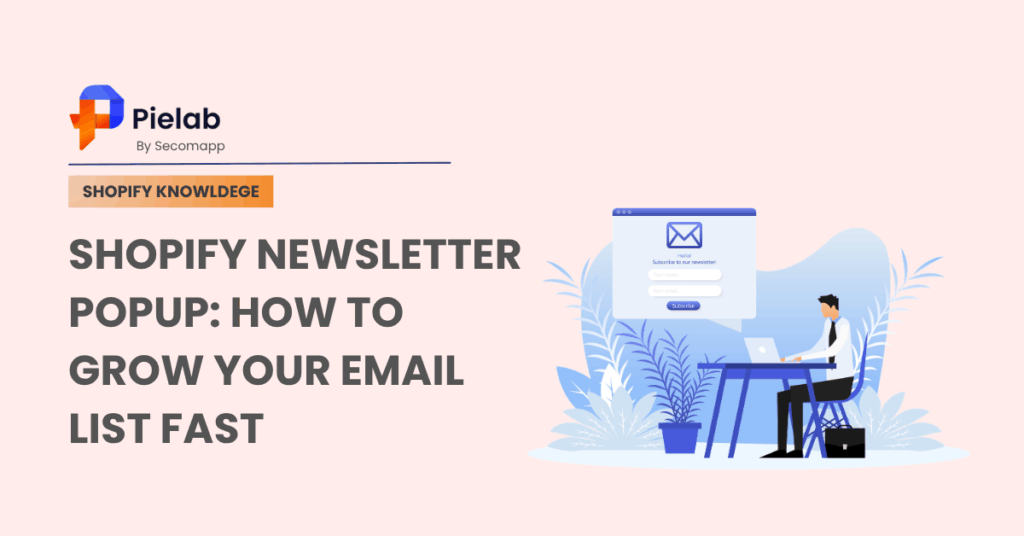
A Shopify newsletter popup is an interactive form that appears on your store’s pages at a specific moment, designed to capture a visitor’s email address in exchange for something valuable. That something could be a discount, early access to new products, insider news, or a chance to win a gift card.
The reason a Shopify newsletter popup matters is straightforward. Most visitors to your store are not ready to buy on their first visit. They are browsing, comparing, or just discovering your brand. Without a way to contact them again, that traffic is lost the moment they close the tab.
A Shopify newsletter popup converts those anonymous visitors into email subscribers you can reach again. Once someone is on your list, you can send abandoned cart emails, promotional campaigns, product launches, and loyalty offers that bring them back to your store when they are ready to buy.
The key is timing and relevance. A Shopify newsletter popup that appears at the right moment with the right offer converts well. One that interrupts a shopper immediately on arrival with a generic “sign up for our newsletter” message performs poorly and frustrates visitors.
How to Add a Pop Up on Shopify Step by Step
There are two main ways to add a pop up on Shopify: using the built-in Shopify Forms app, or using a third-party app with more advanced targeting and design options. Here is how both work.
Method 1: Using the Built-In Shopify Forms App
The built-in Shopify Forms app is the fastest way to add a basic Shopify newsletter popup without installing anything new. It covers the essential features most small stores need to get started.
Steps:
- From your Shopify admin, go to Apps and search for Forms. Install the Shopify Forms app to your store.
- Open the Forms app and choose the type of Shopify pop up you want to create: a popup form or an inline form. Select Popup and give it a name.
- Choose your display style. A floating Shopify pop up appears in a corner or at the bottom of the screen and is less intrusive. An overlay popup covers a significant portion of the screen and is harder to miss. Floating popups work well for ongoing list growth. Overlay popups work better for time-limited offers.
- Customize the Shopify newsletter popup content. Write a headline that communicates the incentive clearly. Add a short body text and your email capture field. Include a clear call-to-action button like “Get 10% Off” or “Join the List.” Add a post-submission message thanking the subscriber and confirming what they will receive.
- Set the trigger. You can display the Shopify newsletter popup after a visitor has viewed a certain number of pages, after a time delay, or when they show exit intent by moving their cursor toward the browser’s close button. Exit-intent triggers are particularly effective for capturing shoppers who are about to leave.
- Connect the Shopify pop up to an automation workflow such as a welcome email that sends automatically when someone subscribes.
- Click Save. Your Shopify newsletter popup is now live.
Time to complete: 20 to 30 minutes for initial setup. Limitation: The built-in Shopify Forms app covers basic needs but has limited design flexibility, fewer trigger options, and no advanced segmentation. For more control, use a third-party Shopify pop up app.
Method 2: Using a Third-Party Shopify Pop Up App
For advanced merchants, third-party popup builders are highly recommended. Powerful, dedicated marketing apps featured on Shopify’s App Store give you significantly more control over design, behavioral triggers, and placement rules.
Look for apps that let you:
- Target specific visitor segments such as new versus returning shoppers
- Trigger based on time on page, scroll depth, or exit intent
- A/B test different popup designs or offers
- Connect directly to your email marketing platform
- Customize for mobile so the Shopify newsletter popup displays correctly on small screens
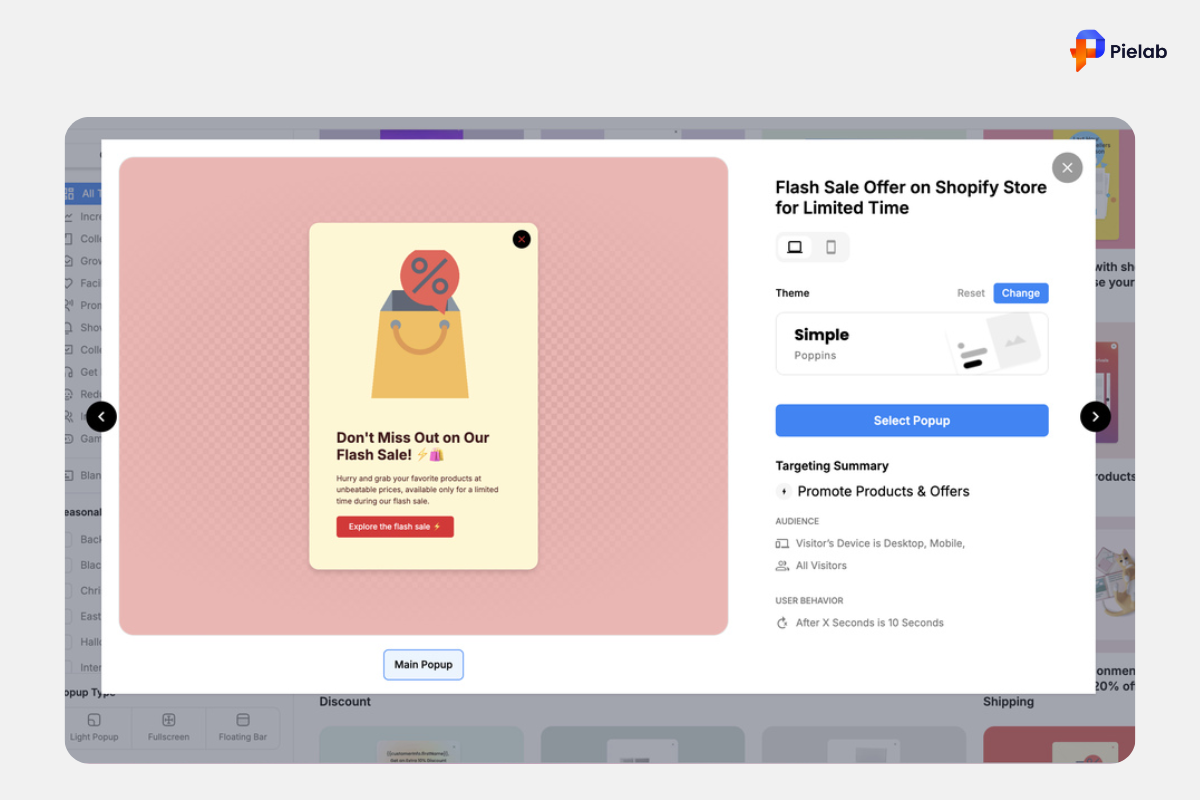
What Makes a Shopify Newsletter Popup Actually Convert
Most Shopify newsletter popup examples fail not because the popup appeared, but because the offer was weak, the timing was wrong, or the design was unclear. These are the elements that separate a high-converting Shopify pop up from one that gets closed immediately.
A clear, specific incentive. Vague offers like “join our community” do not convert. Specific offers do. “Get 10% off your first order” gives shoppers a concrete reason to hand over their email address. The incentive should be relevant to what they were already looking at when the Shopify newsletter popup appeared.
A headline that answers “what’s in it for me” immediately. The first thing a visitor reads when your Shopify pop up appears determines whether they read the rest or close it. Lead with the benefit, not the ask. “Save $15 on your first order” outperforms “Subscribe to our newsletter.”
Simple design with one clear action. A Shopify newsletter popup that asks for first name, last name, email, phone number, and birthday will convert far lower than one that asks only for an email address. Remove every field that is not essential. Every additional field is friction that reduces the number of people who complete the form.
Correct timing and trigger. A Shopify newsletter popup that fires within two seconds of a visitor landing on your store is intrusive and will be closed immediately. Wait until the visitor has had time to engage: after 30 seconds, after viewing two or more pages, or when they show exit intent. Exit-intent triggers are the most effective because they catch shoppers at the moment of highest potential loss.
Mobile optimization. More than half of your store traffic comes from mobile devices. A Shopify newsletter popup that looks great on desktop but covers the entire screen on mobile, with a close button that is impossible to tap, damages the mobile shopping experience and frustrates potential subscribers. Set a specific mobile size and test your Shopify pop up on a real phone before publishing.
Real Shopify Newsletter Popup Examples and What Works
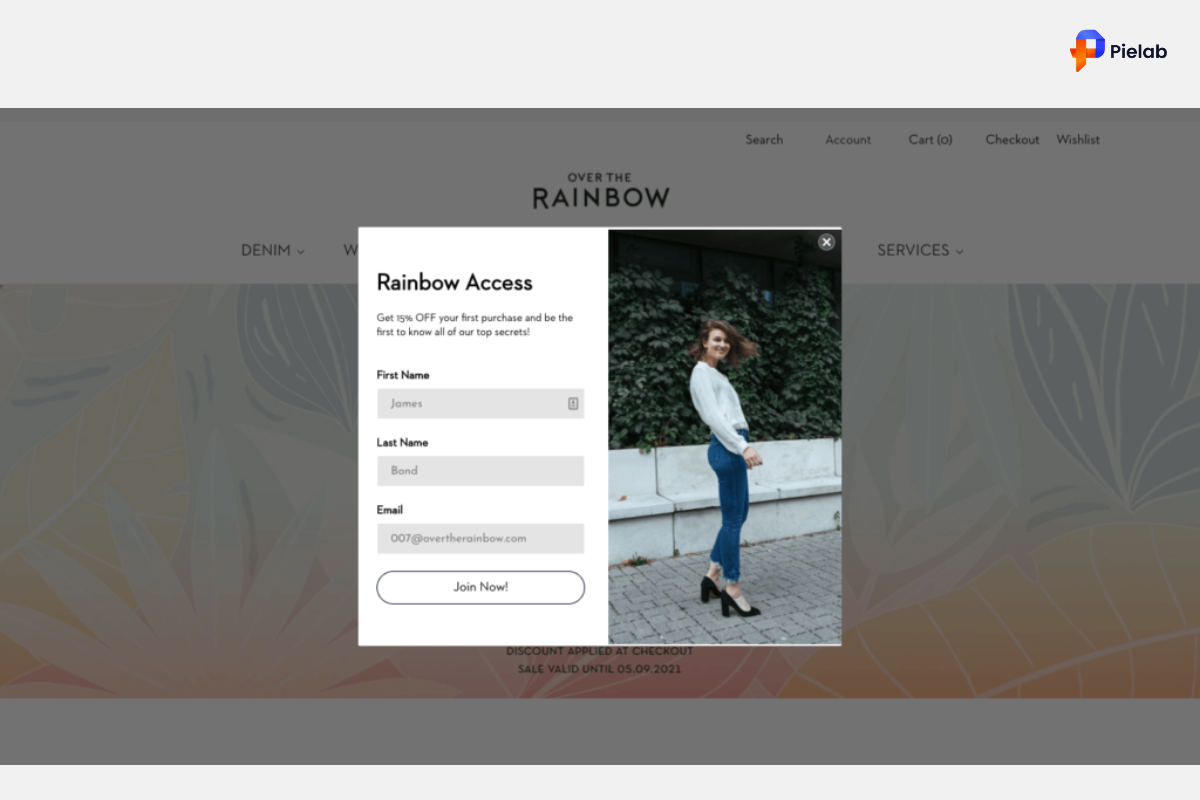
Example 1: Exclusivity-Based Popup
Instead of a discount, this Shopify newsletter popup offers access to member-only content, exclusive events, and early product access. The benefit list is visible at a glance. A GDPR compliance notice builds trust with privacy-conscious shoppers.
What works: Clear benefit list, exclusivity positioning, and trust signal in one Shopify pop up.
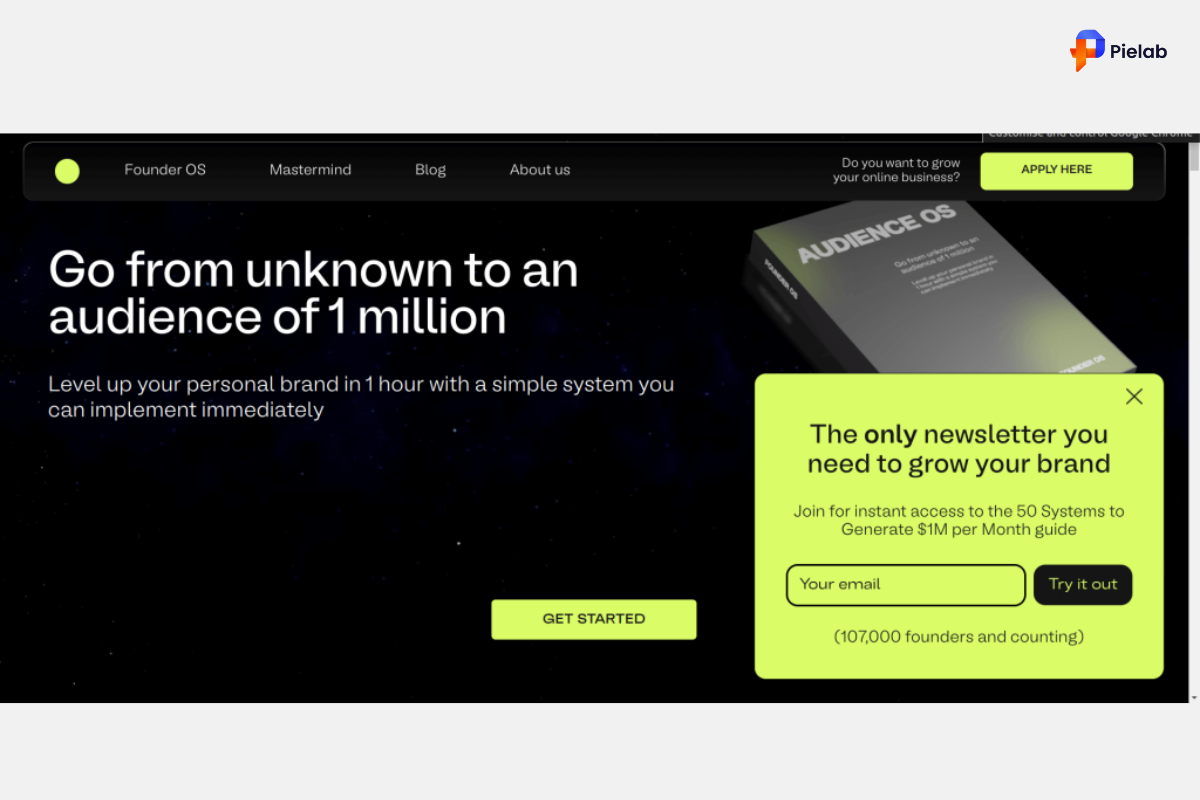
Example 2: Side-Positioned Popup
This Shopify pop up appears on the side of the screen rather than as a central overlay, allowing shoppers to continue browsing while the offer remains visible. The headline targets a specific audience immediately: business owners looking to grow. Social proof appears below the email field to reinforce credibility.
What works: Non-intrusive placement, highly targeted headline, and social proof all in one Shopify newsletter popup.
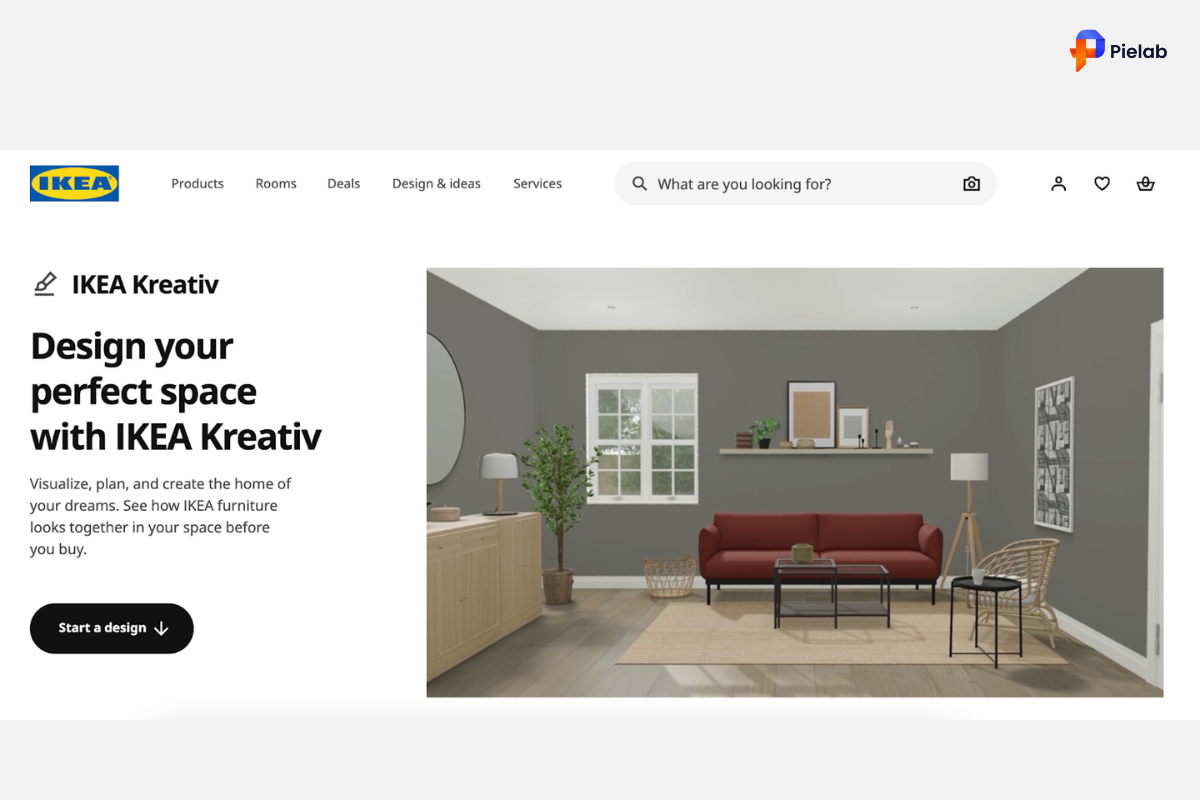
Example 3: Gamified Popup with Gift Card Prize
A chance to win a gift card replaces the standard discount offer. The gamified element creates excitement and makes signing up feel like participating in something fun rather than filling in a form.
What works: The novelty of winning creates engagement that a standard Shopify newsletter popup offer does not.
DECO Features That Make Your Shopify Pop Up Work Harder
A Shopify newsletter popup captures email addresses. But the rest of the shopping experience before and after the popup also determines whether those subscribers eventually buy. DECO gives you the tools to make every element of your store support the same conversion goal as your Shopify pop up.
DECO’s countdown timers, stock labels, trust badges, and banner bars complement every Shopify newsletter popup campaign by reinforcing urgency and trust across every product page your subscribers visit after signing up.
Best for: Shopify merchants who want their Shopify newsletter popup strategy to work alongside urgency labels, trust badges, and site-wide promotion banners that reinforce the offer throughout the entire shopping journey.
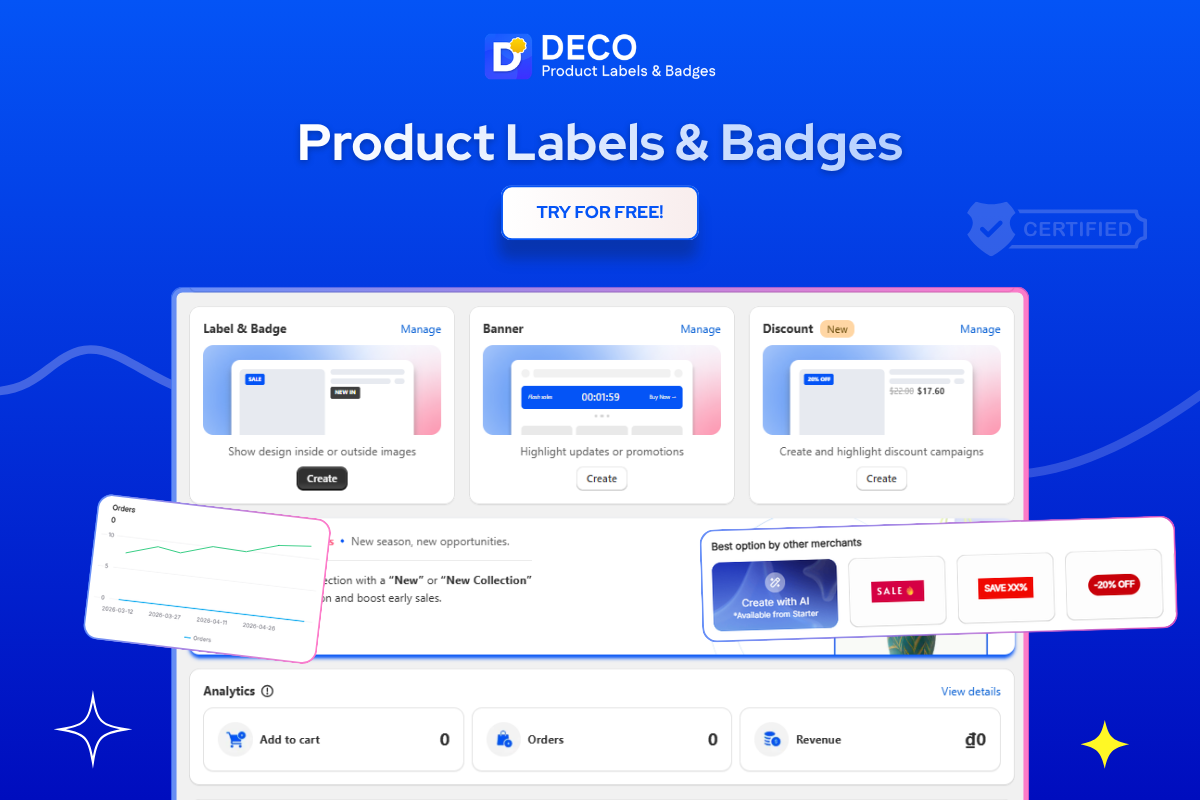
[IMAGE: deco-shopify-newsletter-popup-support-countdown-trust-badges.jpg] Alt text: “DECO features supporting Shopify newsletter popup with countdown timer labels and payment trust badges on product page”
Start with the built-in Shopify Forms app if you want a basic Shopify newsletter popup live today. Move to a third-party app when you need more targeting, design control, or A/B testing capability. Pair both with DECO’s urgency and trust features to make the entire store experience as persuasive as the popup itself.
FAQs
You can add a newsletter popup in Shopify using built-in theme settings, email marketing apps, or popup apps that collect subscriber information.
You can disable a newsletter popup by turning it off in your theme settings or uninstalling the app that controls the popup.
A Shopify newsletter popup is a signup form that appears on your store to collect visitor email addresses for marketing and promotional campaigns.
Yes. Newsletter popups are one of the most effective ways to increase email subscribers by capturing visitors before they leave your store.
Most stores display newsletter popups after 20–45 seconds, on exit intent, or after visitors view multiple pages to avoid disrupting the shopping experience.