
Black Friday is November 27, 2026, and Cyber Monday is November 30. That leaves about six weeks to make sure Google reads your sale prices correctly. Product schema is the code that tells Google a product’s price, stock status, and ratings. When that code is wrong, shoppers may see an old price in search, or a rich result may disappear.
Most stores never check their product schema until something breaks. By then the sale has started, and Google may need days to recrawl your pages. This guide shows what product schema markup should contain for BFCM, which errors cause the most damage, and how to test and fix them on Shopify.
Quick answer: How do you fix Shopify product schema markup before Black Friday? Test a sale product in Google’s Rich Results Test. Confirm the price, currency, and availability match the page. Remove duplicate schema from apps. Validate your changes, then request indexing for your key pages.
Why Product Schema Markup Matters During BFCM
Black Friday changes your catalog faster than any other week. Prices drop, stock sells out in hours, and new apps get installed in a rush. Each change can break the link between what shoppers see and what Google reads.
How structured data helps Google understand product information
Structured data is a block of code, usually JSON-LD, that sits in a page’s HTML. Shoppers never see it. Google reads it to confirm facts already visible on the page, such as the name, price, and stock status.
Product schema uses the Schema.org vocabulary. Google’s documentation lists which properties it expects. Without product schema markup, Google guesses from page text. Guessing is where sale price mistakes start.
A common pattern we flag in Shopify stores is not missing markup. It is correct-looking markup that shows the regular price while the page shows the sale price. Shoppers see one number in the product page and Google reads another.
For Shopify stores managing large catalogs, a schema tool can help maintain consistent structured data across product pages. SearchPie supports Product schema with Offer, AggregateRating, and shipping and return policy data, alongside Breadcrumb and Store Profile schema. These markups help describe product details and site structure, but eligibility for rich results still depends on Google’s requirements and decisions.
Product rich results and shopping visibility
Valid product schema makes a page eligible for product rich results. These can show price, availability, and star ratings in the search listing. Pages may also qualify for merchant listings in Google’s shopping surfaces.
Eligibility is not a guarantee. Google decides what to show. But invalid product schema removes your chance entirely, and BFCM is the worst week to lose it. Treat your product schema as part of your sale launch, not an afterthought.
What Product Schema Markup Should Include for Black Friday
Google’s Search Central documentation sets the minimum. Always check the current version, because requirements change. Use the table below as your working reference.
Product name, image and description
Keep the product name identical to the title on the page. Do not add “SALE” or “Black Friday” to the schema name unless it is in the visible title. Mismatches confuse matching.
Use a high-resolution image that Google can crawl. A broken or placeholder image is a common cause of errors. Keep the description as plain text without HTML tags.
Price, currency and availability
Write the price as a plain number, such as 79.00. Do not include a currency symbol or a thousands separator. Put the currency in its own field using an ISO code, such as USD.
Availability uses Schema.org values, written as URLs. The most common are https://schema.org/InStock, https://schema.org/OutOfStock, and https://schema.org/PreOrder. During BFCM, stock sells out fast. If your schema still says InStock for a sold-out item, you create a mismatch.
Variants add complexity. Each variant can have its own price and stock. Shopify themes usually output an offer for each variant, but check what yours does with a variant product.
Sale prices and offer information
There are two ways a sale reaches your product schema. The first is to set the variant price to the sale price and enter the original in the compare-at price field. Most themes read the variant price, so the schema shows the sale price.
The second is to use an automatic discount or discount code. These apply at checkout. The variant price does not change, so the schema keeps the regular price. This is the main reason merchants ask why their sale price is not showing correctly on Google.
We suggest using the variant price and compare-at price for any sale you want Google to see. Also set a price valid until date.
Reviews and ratings (when eligible)
Mark up reviews only when real reviews appear on the page. The rating in your product schema must match the rating shoppers can see. Never add ratings that are not visible, and never copy reviews from another site.
Review apps usually output their own aggregateRating. That is fine until two sources output it at once. We cover that conflict below.
Common Shopify Product Schema Markup Issues Before BFCM
Most product schema problems fall into three groups. Check each one before your sale pages go live.
Missing or invalid required properties
The most frequent errors are a missing price, a missing image, and a missing currency. Other common causes are a price with a “$” in it, an availability value written as plain text, and a date in the wrong format.
These errors often appear after a theme edit or after an app is removed. An uninstalled app can leave partial code behind. Always re-test after any theme or app change.
Incorrect sale price or availability
This group causes the most visible damage. Google shows a price that does not match the page, or marks an item in stock when it is sold out.
Why is your Shopify sale price not showing correctly on Google? Google shows what it last crawled, or what your Merchant Center feed says. If the schema price differs from the visible price, Google may ignore it. Delays also matter, because Google needs time to recrawl after your sale starts.
Other causes include a discount app that changes the display only, a variant mismatch where the schema shows the first variant, and inventory tracking turned off.
Duplicate or conflicting schema markup
Many stores run schema from three places: the theme, a review app, and an SEO app. Each may output its own Product item. Two Product blocks with different prices confuse Google.
Keep one source of truth. We suggest letting the theme or one dedicated schema tool output the core product schema, and using other apps only for what they add, such as reviews.
Troubleshooting table: issue, cause, fix
If you manage schema through an SEO app, review its output alongside your theme and review apps. SearchPie provides schema configuration tools, while its technical SEO audit can help identify issues such as duplicate meta titles, duplicate meta descriptions, and multiple H1 headings. However, you should still inspect the page source and Rich Results Test to confirm whether multiple Product items are present and whether their values conflict.
How to Check Shopify Product Schema Markup
Check your schema in two places. The Rich Results Test checks one page at a time. Search Console shows problems across your whole store.
Test with Google Rich Results Test
- Open Google’s Rich Results Test at search.google.com/test/rich-results.
- Paste a product URL and click Test URL.
- Open the detected items, such as Product snippets or Merchant listings.
- Check that price, priceCurrency, and availability match the page.
- Review errors and warnings. Errors can block rich results. Warnings are recommendations.
Do not test only one product. Test a regular product, a sale product, a sold-out product, a product with variants, and a product with reviews. We suggest testing the sale product after the sale price is live, not before.
Then check for duplicates by hand. Right-click the product page, choose View page source, and search for “application/ld+json”. Count how many Product blocks appear.
Review issues in Google Search Console
- Open Google Search Console and select your store property.
- In the left menu, find the Shopping or Enhancements section.
- Open Product snippets and Merchant listings, if they appear.
- Review the Errors, Warnings, and Valid groups.
- Click an error to see affected URLs and examples.
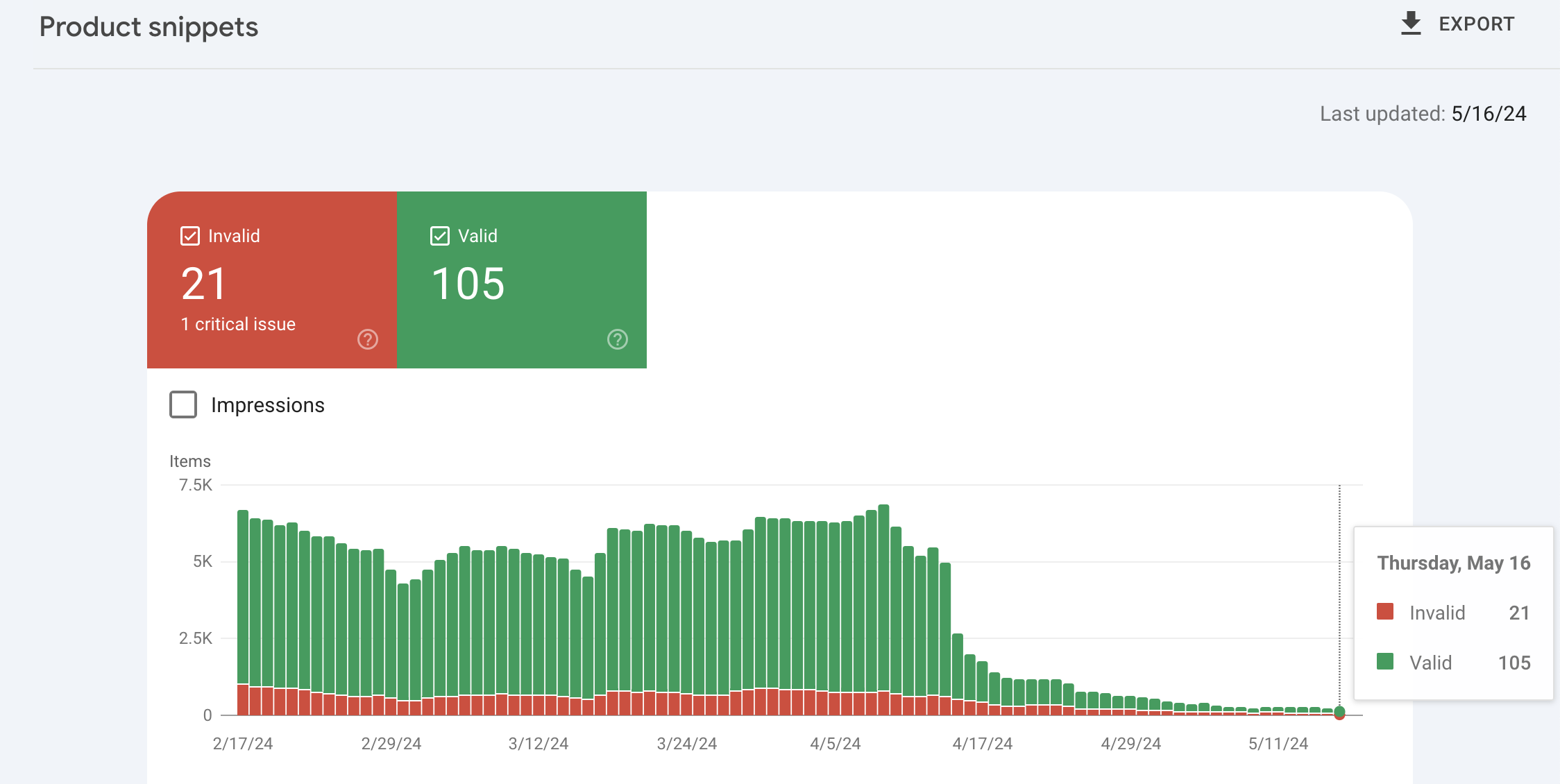
These reports can lag behind your changes. They are best for spotting patterns across many products. After you fix an issue, use Validate fix so Google rechecks the affected pages.
How to Fix Product Schema Markup Issues on Shopify
Work in this order: find where your schema comes from, fix the data, then validate. Back up your theme before touching any code. In Shopify admin, go to Online Store, then Themes, then Duplicate.
Check existing theme and app-generated structured data
Most Online Store 2.0 themes output product schema through Shopify’s structured_data filter. Apps may add more. List every source:
- Your theme’s product template or section
- Review apps
- SEO and schema apps
- Page builders or custom product templates
To find app output, go to Online Store, then Themes, then Customize, and open App embeds. Switch off any embed that duplicates your core schema. Then re-test the page and recount the Product blocks in the source.
If your existing theme does not provide the structured data coverage you need, a schema app is another option. SearchPie supports Product schema with pricing, availability, review information, and shipping and return policy data. Before enabling it, check what your theme and other apps already output. Keep the implementation consistent, then test a regular product and a discounted product in Google’s Rich Results Test to confirm that the rendered data matches the visible page.
Fix missing or incorrect product properties
Fix the data first, because most themes read it from your product fields.
- Price: Set the sale price in the variant price field. Enter the original in compare-at price.
- Availability: Turn on Track quantity for each variant, and keep inventory counts accurate.
- Image: Upload a clear main product image to each product.
- Identifiers: Fill in SKU and barcode fields where you have them, and check whether your schema outputs them.
- Sale end: Add a price valid until date if your tool supports it.
If your theme’s schema is incomplete, you can edit the product template or use an app. Test any theme code change on a duplicate theme first.
Validate schema markup after changes
- Re-run the Rich Results Test on your test products.
- Confirm only one Product item appears in the page source.
- In Search Console, click Validate fix on resolved issues.
- Use URL Inspection to request indexing for your top sale pages.
- If you use Google Merchant Center, refresh your product feed and compare prices.
Recrawl timing varies, so do these steps early. We suggest finishing fixes at least two weeks before Black Friday.
How Can SearchPie Help With Product Schema Markup Before BFCM?
Most product pages don’t fail because of poor design; they fail because the underlying data is missing, outdated, or unreadable to search engines. During Black Friday, this gap widens dramatically as prices, stock levels, and promotions change by the hour. SearchPie, an all-in-one Shopify SEO platform built by PieLab, holding a “Built for Shopify” badge and a 4.9 rating from over 2,440 reviews—is designed to bridge this gap and keep your store sale-ready.
Dynamic Schema Markup: To survive Black Friday, your search listings must perfectly match your live product pages. SearchPie handles this by automatically injecting clean JSON-LD structured data without requiring you to edit any theme code. Its Product schema comprehensively covers everything Google needs: names, images, descriptions, brands, live prices, currencies, stock availability, aggregate ratings, and shipping or return policies. Crucially for holiday sales, this data updates dynamically. If a flash sale item sells out, it instantly reflects as “out of stock” in the structured data. If a discount drops, the schema displays the exact promo price to shoppers right on the SERP, preventing costly bounce rates caused by mismatched pricing. SearchPie also generates Breadcrumb and Store Profile data to map your site hierarchy. Premium unlocks core schemas for products, blogs, and collections, while Enterprise grants access to all six types, including Local Business.
Technical SEO & Indexing: Keeping your Black Friday pages findable is just as vital. SearchPie audits your store for theme-level conflicts like duplicate meta tags or multiple H1s and flags isolated orphan pages. For rapid visibility, it tracks URL indexation, connects to Google Search Console to push sitemaps and instant indexing requests, and supports IndexNow. It also detects 404 errors and creates bulk 301 redirects, a lifesaver when last year’s Black Friday URLs still receive traffic. Higher-tier plans automate these redirects in real time.
Image Optimization: Heavy product galleries slow down crawling and frustrate rushed shoppers. SearchPie provides bulk, lossless compression for JPEGs, automatically optimizing new uploads while offering a one-click restore. It also automates bulk ALT text, allowing you to use dynamic templates (pulling variables like product title and price) or AI-generated descriptions to fill empty fields or overwrite outdated text.
Supporting your schema strategy, SearchPie integrates directly with Google Merchant Center to quickly resolve product feed errors that can cause catastrophic price mismatches during high-traffic sales. It also features Answer Engine Optimization (AEO) to structure your data so AI tools like ChatGPT Search and Google AI Overviews can confidently cite your products. Furthermore, the platform boosts Core Web Vitals with lazy loading and link preloading, tracks daily keyword rankings, uses AI to draft multilingual product descriptions, and features a backlink community for merchant guest posting.
Choosing a Plan: The free Starter tier is ideal for small stores needing a pre-holiday audit to spot technical blockers. Premium suits growing catalogs requiring automated redirects, larger image quotas, and active schema. Enterprise is built for large, multilingual brands requiring a monthly 1:1 SEO roadmap and hands-on technical troubleshooting.
No app guarantees rich results, because Google makes that decision. Install one schema source, then test your products again with the Rich Results Test. You can start on the free plan and compare the results before upgrading. Get SearchPie on the Shopify App Store.
Shopify Product Schema Markup Checklist Before BFCM
Data and prices
- Sale prices are set as the variant price, with the original in compare-at price
- Price is a plain number with the currency in priceCurrency
- Price valid until matches the sale end date
- Inventory tracking is on for sale products
Schema content
- Name, image, and description match the visible page
- Availability uses a Schema.org value and reflects real stock
- Ratings in schema match visible reviews
- Only one Product item appears in the page source
Testing
- Rich Results Test passes for a regular, sale, sold-out, variant, and reviewed product
- Search Console Product snippets and Merchant listings show no new errors
- Fixes are validated in Search Console
Indexing and feed
- Key sale URLs are requested for indexing
- Merchant Center feed prices match page prices
- Changes are finished two weeks before Black Friday
Freeze and monitor
- A change freeze starts on November 21
- Someone checks Search Console during the sale