
Black Friday traffic arrives in waves, and most of it lands on a phone. A shopper taps a deal, waits, and leaves before the product image appears. Every extra second of loading time gives a competitor a chance to win the sale.
This guide shows how to test your Shopify store speed, find the causes of slow pages, and fix the most common problems before the sale starts. It focuses on speed as a shopper experience and as a search signal. It does not cover server capacity, so a plan for traffic spikes still needs your hosting and platform support.
Quick answer: Why is my Shopify store slow before Black Friday? Usually because of large images, too many apps and third-party scripts, a heavy theme, or banners that load late and shift the layout. Test the mobile version of your homepage, sale collection, and top products in PageSpeed Insights, then fix the largest problem first.
Why Shopify Store Speed Matters During BFCM
Speed affects three things during the sale. Shoppers leave faster when pages load slowly. Google uses page experience signals, including Core Web Vitals, when it compares pages. And slow pages cut into the time you have to show offers before a shopper decides.
Most BFCM traffic is mobile. Phones have weaker processors and often weaker connections than the laptops used to build the store. A page that feels fast on your office Wi-Fi can feel slow on a crowded train.
Speed is not the same as capacity. A faster page loads quicker for one shopper, but it does not guarantee that your store stays online during a traffic peak. Check your platform plan and your app limits separately, and do not treat a speed score as proof that your store can handle a surge.
How to Test Your Shopify Store Speed
Start with a baseline. Test the pages that matter most for the sale: the homepage, your Black Friday collection, and your top three to five products. Record the scores before you change anything, so you can see what each fix achieves.
PageSpeed Insights and Core Web Vitals
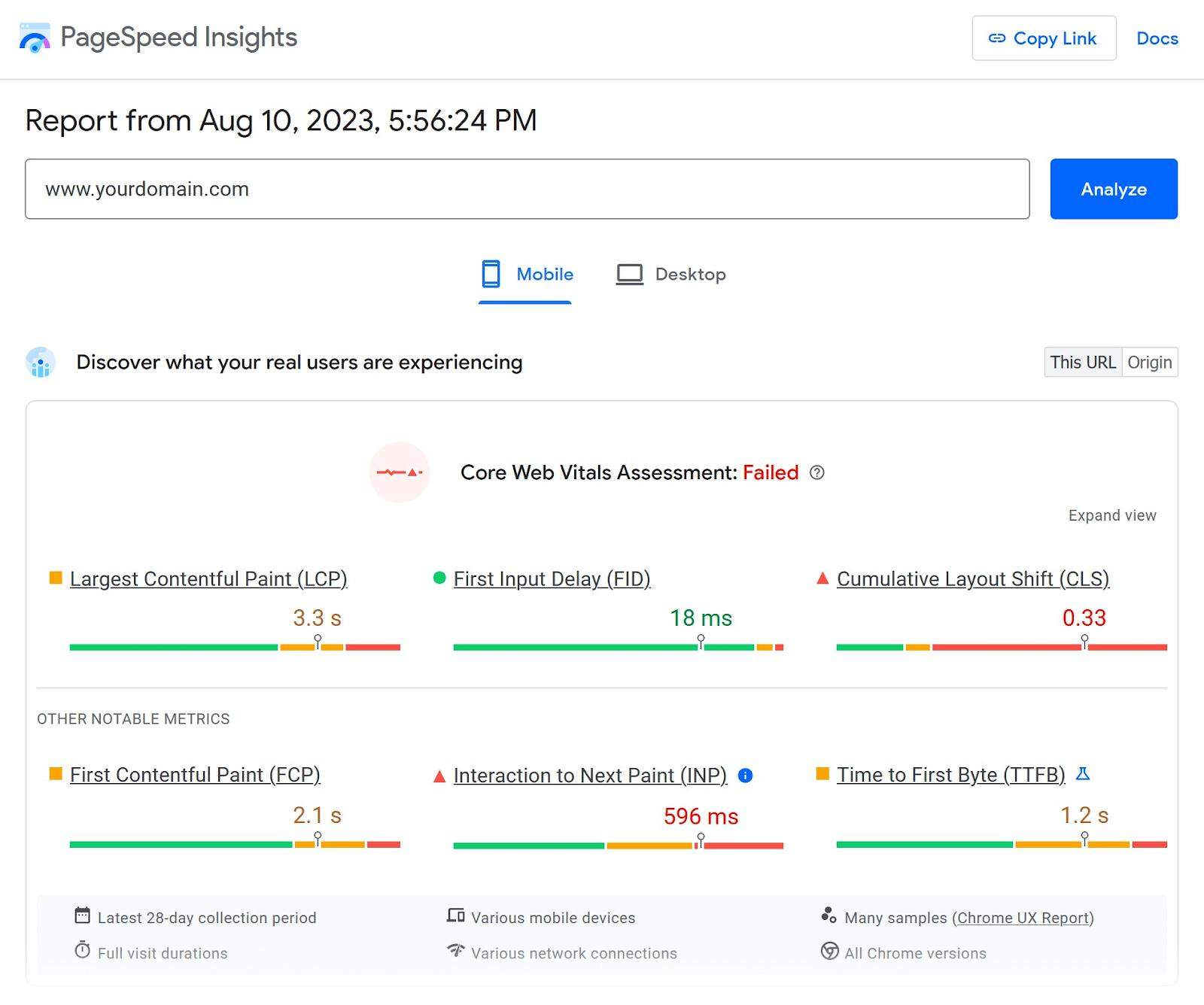
Open Google PageSpeed Insights and enter the full URL of each page. The tool reports field data, which comes from real visitors over the past 28 days, and lab data, which comes from a simulated test. Field data shows what shoppers experience. Lab data helps you find the cause.
Focus on three Core Web Vitals metrics:
- LCP (Largest Contentful Paint): how long the main content takes to appear. Aim for 2.5 seconds or less.
- INP (Interaction to Next Paint): how quickly the page responds to taps and clicks. Aim for 200 milliseconds or less.
- CLS (Cumulative Layout Shift): how much the layout moves while loading. Aim for 0.1 or less.
The Opportunities and Diagnostics sections list the specific problems. Start with the item that has the largest estimated saving. For a more detailed walkthrough, see our guide to Shopify speed optimization, which covers how to check performance, optimize images, and review apps that may slow down your storefront. SearchPie also provides image compression, Instant Page preloading, and technical SEO audits to help merchants work through common optimization tasks.
Mobile vs desktop
Read the mobile tab first. Google’s tests and most BFCM shoppers use mobile, and mobile scores are usually lower. A desktop score of 90 can hide a mobile score of 40.
Also test on a real phone over a mobile connection. Open the sale collection, scroll, tap a product, and try to add it to the cart. Note any delay, any jump in the layout, and any button that moves as the page loads.
Common Causes of Slow Shopify Stores
Most slow sale pages come from four sources. Work through them in this order, because the first two are the most common.
Heavy images
Large hero images and uncompressed product photos are the most frequent cause. A single 4 MB banner can delay the largest content element on the page. Check the image size in the PageSpeed report and in your Shopify media library. If you manage a large product catalog, optimizing images one by one can take hours. SearchPie supports bulk and automatic lossless compression for JPG and JPEG product images, plus a Restore option if you need to recover the originals. You can prioritize the images used on your most important product and collection pages before moving on to the rest of the catalog.
Third-party scripts
Chat widgets, review widgets, tracking tags, and pop-ups each add code. Some run before the page content appears. Count the scripts that load on your sale page, and ask whether each one earns its place during the sale.
Heavy themes
Some themes load large stylesheets and scripts for features the store does not use. A theme with many sections and animations can slow a page even when the content is small. If your theme is heavy, a lighter theme is a larger project, so plan it well before November.
Too many apps
Every app can add scripts, styles, and API calls. Stores often keep apps they no longer use. Review the list under Apps in Shopify admin, and remove anything that does not support the sale.
How to Improve Shopify Store Speed Before BFCM
Work through these fixes in order of impact. Test after each change, and keep notes on what improved.
Compress product images
Compress every large image before upload, and use WebP where your theme supports it. Target the images above the fold first, then the product gallery. A compressed image that still looks sharp on a phone is the goal, not the smallest possible file.
Resize images to the size they display. A 4000-pixel photo shown at 800 pixels wastes bandwidth. Most themes display product images much smaller than the original upload.
Optimize above-the-fold images
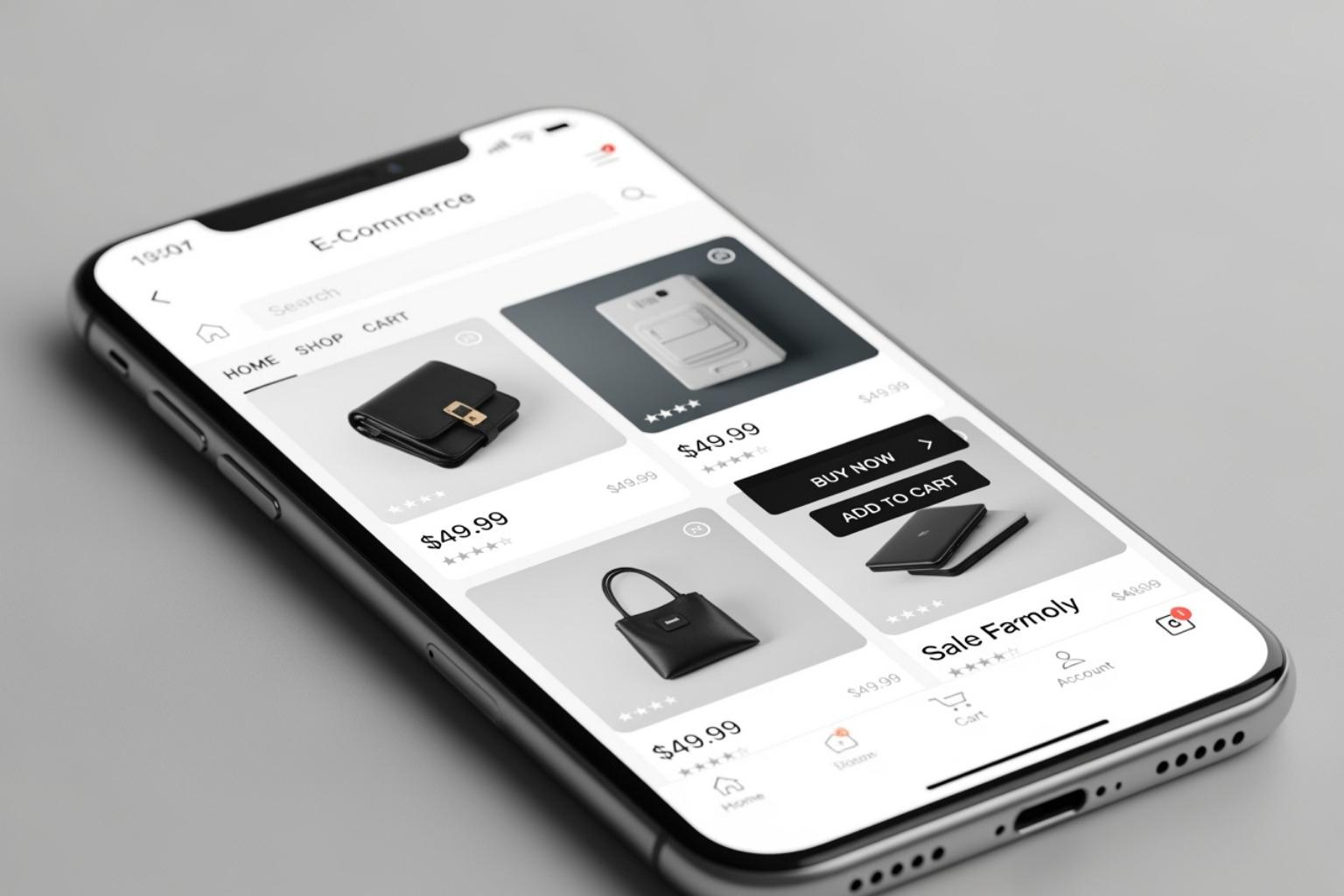
The images a shopper sees first, such as the hero banner and the first row of product images, decide how fast the page feels. Make sure these images are compressed and sized correctly. Do not lazy load them, because lazy loading delays images that the shopper needs immediately.
If your hero banner is a video or animation, replace it with a static image on mobile. The shopper needs the offer, not the motion.
Reduce unnecessary scripts
Remove scripts from apps you no longer use. For the apps you keep, check whether they load on every page. Many apps can be limited to specific templates, such as only the product page or only the cart. Limit a pop-up so it appears after a delay or on exit intent, not on arrival.
Defer scripts that are not needed for the first screen. Your theme or app settings may offer this option. Test after each change, since a script can break a feature if it loads too late.
Improve LCP and CLS
LCP improves when the largest element loads faster, which usually means a smaller hero image and a faster server response. CLS improves when the page reserves space for elements that load late. A countdown bar or promo banner that appears after the page loads pushes content down and raises CLS.
Reserve a fixed height for banners in your theme, so the layout stays still. Give images width and height attributes, so the browser knows their space before they load. Place the sale banner in a location that does not push the product grid when it appears.
Review lazy loading
Lazy loading delays images that are off-screen until the shopper scrolls near them. It saves bandwidth on long collection pages. Make sure lazy loading applies to images below the fold, and not to the hero or first product row.
Check your collection pages on a phone after changing lazy loading. Scroll quickly and confirm that images appear without a long blank gap.
Shopify Speed Optimization: Manual vs App
Some speed fixes are simple to do by hand. Others take time across a large catalog.
For a small store with a few dozen products, manual work is practical. For a catalog with hundreds of products, an app saves time on images and repeated settings. Either way, test the result on a real phone.
How Can SearchPie Help Speed Up Your Store Before BFCM?
SearchPie is an all-in-one Shopify SEO and speed platform by PieLab. It carries the Built for Shopify badge and a 4.9 rating from more than 2,440 merchant reviews. Image SEO has the strongest link to speed, so it comes first, followed by schema and technical SEO.
Image SEO and speed. Images are usually the heaviest part of a sale page. SearchPie compresses JPG and JPEG product images in bulk with lossless compression, and new uploads are compressed automatically. Smaller files reduce the bytes a phone must download, which can improve LCP on product and collection pages.
A Restore option returns any image to its original version if you need it. The same feature set adds ALT text in bulk from a default template, a custom template built from product variables, or AI descriptions for each image. Since the compression works on the images already in your library, it helps the whole catalog before the sale, not only the next upload. Starter includes 50 compressions, Premium includes 500, and Enterprise offers unlimited compression, which suits catalogs that add many photos before the sale.
Technical SEO and indexing. Broken links and redirect chains waste time on the way to a product page. SearchPie detects 404 links, creates 301 redirects in bulk, and flags pages with no internal links. Premium and Enterprise add automatic redirects as new broken links appear. The audit also finds duplicate meta titles and multiple H1 headings, which often come from theme conflicts, and it checks whether key URLs are indexed.
Schema. Product schema tells Google the price, stock, and ratings in a structured format. It does not speed up a page, but it keeps the search listing accurate when prices change during the sale. Premium includes Product schema, and Enterprise adds all six schema types.
The rest of SearchPie’s features support the same goal. Speed optimization adds lazy loading and instant link preloading, which helps the next page load faster after a shopper taps a link. AI search readiness structures product data for AI tools such as ChatGPT Search, Perplexity, and Google AI Overviews. Keyword tools and daily rank tracking help you check target terms in titles and headings. AI content generation writes or rewrites product descriptions and meta titles. The backlink community lets merchants swap guest posts, and the Google Merchant Center integration helps fix feed errors that can cause price mismatches.
Which plan fits whom. Starter, at no cost, suits new or small stores that want to compress a first batch of images and run the audit before paying. Premium suits growing stores with a sale catalog of dozens or hundreds of products that need larger image quotas, automatic redirects, and schema. Enterprise suits large catalogs with thousands of images, multi-language stores, and teams that want the monthly 1:1 SEO roadmap and help fixing issues.
Last-Minute Speed Checklist
Measure
- Baseline PageSpeed scores recorded for homepage, sale collection, and top products
- Mobile results reviewed first
- Real-phone test done on a mobile connection
Images
- Hero and above-the-fold images compressed and sized correctly
- Product images compressed, with WebP where supported
- Above-the-fold images are not lazy loaded
Scripts and apps
- Unused apps removed
- Pop-ups set to trigger after a delay or on exit intent
- Non-essential scripts deferred or limited to specific templates
Layout
- Banner space reserved so content does not jump
- Images have width and height set
- Sale banner does not push the product grid
Final checks
- Re-test LCP, INP, and CLS after every change
- Add to Cart works on a real phone
- Changes stop on November 21, with only critical fixes after that
FAQs