

Your Shopify URLs are doing more SEO work than you might think. Every product page, collection page, and blog post on your store has a URL that search engines read to understand what the page is about. If those URLs are unclear, duplicated, or poorly structured, you are making it harder for Google to rank your pages and harder for shoppers to trust the links they click.
Shopify has a fixed URL structure that limits what you can change. Understanding exactly what is editable and what is not, and knowing how to make the right changes without breaking your existing rankings, is one of the most important technical SEO tasks for any Shopify merchant.
This guide explains how Shopify URLs work across every page type, how to change them correctly, how to make your Shopify domain URLs as SEO-friendly as possible, and what to do when you need to update a URL without losing the traffic it already receives.
Summary
How Shopify URLs Are Structured
Shopify URLs follow a fixed folder structure depending on the type of page. Understanding this structure is the first step toward managing your Shopify domain URLs effectively.
- Product URLs live under the /products/ directory. A typical Shopify product URL looks like this:
yourstore.com/products/your-product-name
When you add a product to a collection, Shopify also generates a second version of that URL under the collection path:
yourstore.com/collections/your-collection/products/your-product-name
Both Shopify URLs point to the same product page. Shopify handles this automatically by adding a canonical tag to the collection-based version, telling Google to prioritize the /products/ version. This prevents the duplicate content from hurting your SEO, but only if the canonical tag is correctly implemented in your theme.
- Collection URLs live under the /collections/ directory:
yourstore.com/collections/your-collection-name
You can create sub-collections by nesting them within the collections folder, such as /collections/new-releases/shorts. The /collections/ folder prefix cannot be removed, but the collection name portion is fully editable.
- Blog URLs follow a slightly unusual structure because Shopify supports multiple blogs on one store:
yourstore.com/blogs/blog-name/article-title
If you only have one blog and named it “blog,” you may end up with a URL like /blogs/blog/article-title, which looks awkward. Choosing a meaningful blog name when you set it up avoids this problem. The /blogs/ folder prefix stays regardless of what you name the blog.
- Other pages such as your About page or Contact page live under the /pages/ directory:
yourstore.com/pages/page-name
In all cases, the folder structure is fixed by Shopify. What you can edit is the handle, which is the final portion of the URL after the last forward slash. That is where your Shopify URL optimization work happens.
How to Change Product URLs on Shopify
Changing a Shopify product URL handle is one of the most commonly needed fixes for SEO. Default handles are generated from your product title, which often creates long, keyword-poor Shopify URLs that do not perform well in search results.
How to Change a Product URL Handle
Steps:
- From your Shopify admin, go to Products.
- Click the product whose URL you want to change.
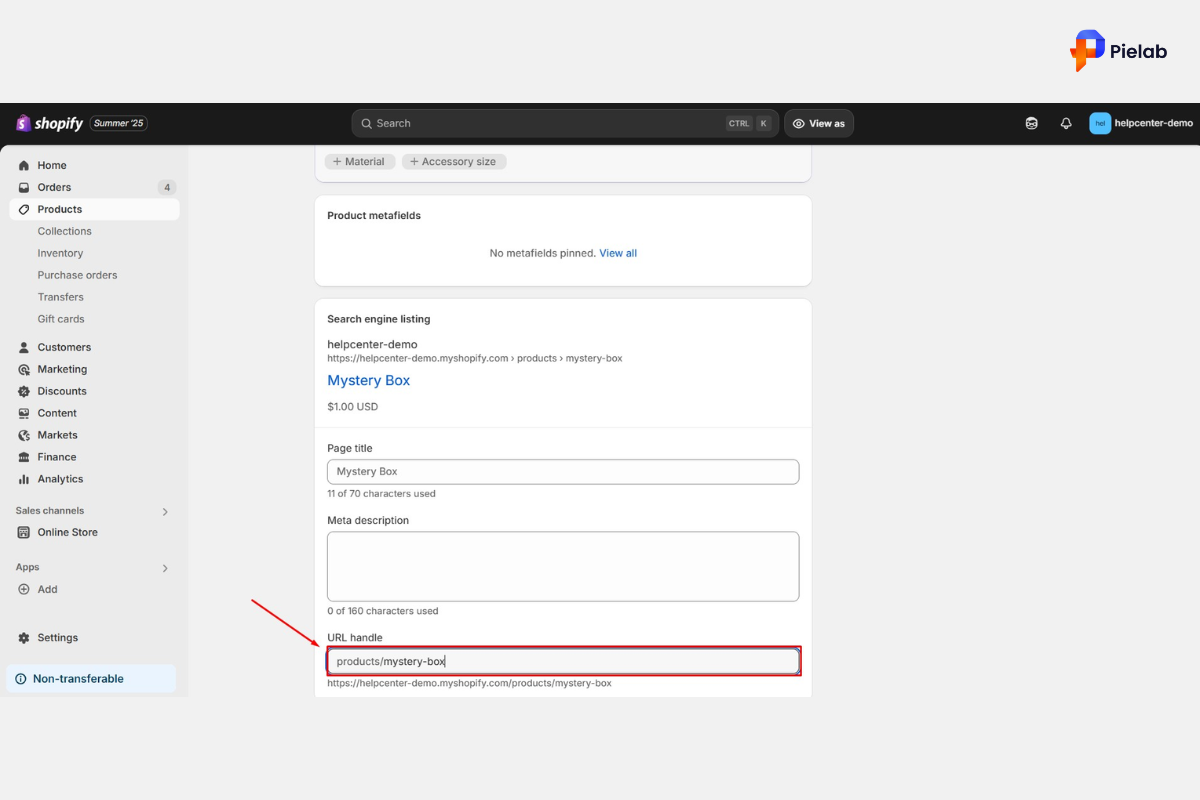
- Scroll down to the Search engine listing section and click Edit.
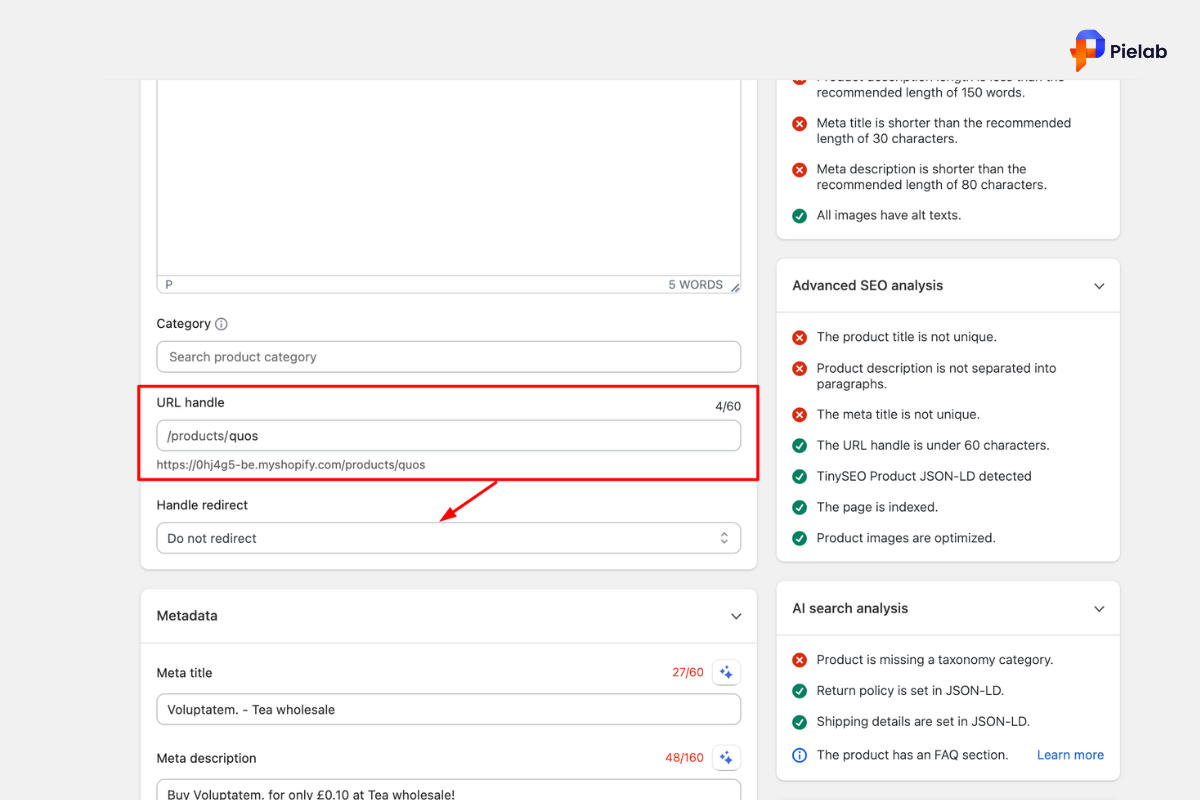
- Scroll to the URL handle field. This is the editable portion of the Shopify product URL.
- Edit the handle to a short, keyword-relevant version. For example, change “womens-blue-running-shoes-lightweight-model-x2” to “womens-lightweight-running-shoes.”
- When you change a URL handle, Shopify automatically prompts you to create a redirect from the old URL to the new one. Always leave this ticked. It preserves any existing rankings or backlinks pointing to the old Shopify URL.
- Click Save.
Time to complete: 5 minutes per product URL. Important: Always use the redirect option when changing Shopify URLs. Skipping the redirect creates a 404 error for anyone who visits the old URL, including Google’s crawler, which can damage your rankings.
How to Switch to Collection-Based Product URLs
By default, Shopify 2.0 themes use the /products/ URL structure. If you want product pages to display within their collection URL instead, you can change this in your theme code.
Steps:
- From Shopify admin, go to Sales Channels, then Online Store, then Themes.
- Click Actions, then Edit Code.
- Under Snippets, open card-product.liquid.
- Find the line containing card_product.url.
- Change it from card_product.url to card_product.url | within: collection.
- Click Save and check your live website to confirm the change.
This change affects how Shopify URLs display for product links across your store. It does not remove the canonical tag pointing to the /products/ version, so Google still understands which URL is the primary one.
How to Change Collection and Blog URLs on Shopify
How to Change a Collection URL
Steps:
- From your Shopify admin, go to Products, then Collections.
- Click the collection whose URL you want to change.
- Scroll to the Search engine listing section and click Edit.
- In the URL handle field, edit the collection name to a shorter, keyword-rich version. A good Shopify collection URL is concise and descriptive: /collections/womens-running-shoes performs better in search than /collections/womens-shoes-running-athletic-footwear.
- Leave the redirect prompt ticked so the old Shopify URL automatically redirects to the new one.
- Click Save and check your live store to confirm.
Time to complete: 5 to 10 minutes per collection URL.
How to Change a Blog Post URL
Steps:
- From your Shopify admin, go to Sales Channels, then Online Store, then Blog Posts.
- Click the post whose URL you want to change.
- Scroll to the Search engine listing section and click Edit.
- Edit the URL handle to a short, keyword-focused version that reflects the post’s primary topic.
- Click Save.
Important difference: When you change a blog post URL on Shopify, a 301 redirect is not automatically created the way it is for product and collection URLs. You need to manually add the redirect from the old Shopify URL to the new one. Go to Online Store, then Navigation, then URL Redirects, and add the old path pointing to the new path. Skipping this step means the old blog URL will return a 404 error. For a deep dive into manual mapping configurations, check the official Shopify Help Center Redirect Documentation.
How to Move a Blog Post Between Blogs
- If your Shopify domain has multiple blogs and you want to move a post from one to another:
- Open the blog post in your admin.
- Scroll to the Organization section.
- Click the Blog dropdown and select the new blog.
- Click Save.
- Manually create a 301 redirect from the old Shopify URL to the new one, as Shopify will not do this automatically when changing blog assignment.
How to Change Other Page URLs
- For standard pages like your About or Contact page:
- Go to Sales Channels, then Online Store, then Pages.
- Click the page you want to edit.
- Scroll to Search engine listing and click Edit.
- Edit the URL handle.
- Leave the redirect prompt ticked.
- Click Save.
Are Shopify URLs SEO-Friendly
Shopify URLs are SEO-friendly enough when you manage them correctly. The fixed folder structure (/products/, /collections/, /blogs/, /pages/) is not a disadvantage in itself. Google handles these prefixed URL structures without issue across millions of Shopify stores.
The real SEO impact of your Shopify URLs comes from what you put in the handle portion. A handle that is short, keyword-relevant, and readable by humans performs better than a long, auto-generated string of words pulled from a verbose product title.
Where Shopify URLs create genuine SEO challenges is in two specific areas.
Duplicate URL generation. Every product in a collection generates two valid Shopify URLs. If canonical tags are not working correctly in your theme, both versions can compete with each other in search results, splitting your ranking signals. Check your product pages in Google Search Console to confirm the canonical tag is pointing to the /products/ version correctly.
Blog URL structure. The /blogs/blog-name/ folder format can result in unnecessarily long Shopify URLs if you are not thoughtful about how you name your blog. A blog named “news” produces URLs like /blogs/news/article-title, which is functional but adds a folder segment that contributes little SEO value. Many merchants choose a cleaner blog name that adds context, such as /blogs/skincare-tips/ for a beauty brand.
Best Practices for Shopify URLs That Protect Your Rankings
Whether you are cleaning up existing Shopify URLs or setting up a new store, these practices keep your URL structure SEO-friendly and stable over time.
Keep handles short and specific. The best Shopify URLs contain the primary keyword for that page and nothing else. Two to five words separated by hyphens is the ideal length. Avoid numbers, special characters, and unnecessary filler words.
Use hyphens not underscores. Google reads hyphens as word separators in Shopify URLs. Underscores are treated as joining characters, which means “running_shoes” is read as one word rather than two. Always use hyphens when editing URL handles.
Use lowercase letters only. Shopify URLs are case-sensitive. A URL with uppercase letters can create confusion when linked inconsistently and may be treated as a separate URL by some crawlers. Stick to lowercase throughout all your URL handles.
Include your primary keyword. Every product, collection, and blog post URL handle should include the main keyword that page is trying to rank for. If your product page targets “waterproof hiking boots for women,” the handle should be /products/waterproof-hiking-boots-women not /products/product-123.
Always create redirects when changing URLs. Any time you change a Shopify URL handle, the old URL must redirect to the new one. For products and collections, Shopify prompts you to do this automatically. For blog posts, you need to add the redirect manually. Failing to redirect old Shopify URLs breaks any existing backlinks and loses any ranking signals those URLs had accumulated.
Be consistent across your Shopify domain. A consistent URL structure makes it easier for Google to crawl your store and understand how pages relate to each other. If collection URLs follow one naming convention and product URLs follow another, the inconsistency makes your site harder to understand at scale.
SearchPie Features That Help You Manage Shopify URLs for SEO
Managing Shopify URLs manually works for stores with small catalogs. For stores with hundreds or thousands of products, collections, and blog posts, keeping URL handles clean, consistent, and SEO-optimized across the entire Shopify domain becomes a time-consuming ongoing task.
SearchPie is built specifically for Shopify merchants who want to manage their on-page SEO, including URL-related issues, without spending hours in the Shopify admin checking each page individually.
SEO audit for URL and meta issues. SearchPie scans your entire Shopify store and flags pages where URL handles are missing keywords, where meta titles or descriptions are absent, and where duplicate content issues may be affecting how Google reads your Shopify URLs. Instead of discovering these problems manually through Google Search Console, SearchPie surfaces them in a single dashboard with prioritized recommendations. This is particularly useful after a product catalog update or theme change that may have generated new Shopify URLs with auto-generated handles that need improvement.
Bulk meta tag management. When you update Shopify URLs as part of an SEO cleanup, the page title and meta description often need updating at the same time. SearchPie lets you audit and update meta tags across your entire Shopify domain in bulk, rather than opening each product or collection page individually to make changes. This saves significant time when you are cleaning up URL handles across a large catalog and want the meta data to match the new, optimized URL structure.
Redirect monitoring. SearchPie helps you track whether your Shopify URLs are being redirected correctly after handle changes. Broken redirects from old Shopify URLs to new ones are a common source of 404 errors that damage crawl budget and rankings. Catching them early keeps your Shopify domain healthy and Google’s crawl focused on your active pages.
Best for: Shopify merchants who are cleaning up URL handles across a large catalog, who want to audit their Shopify domain for URL-related SEO issues, and who want to manage meta tags and URL quality in one place rather than page by page.
Ready to audit and fix your Shopify URLs across your entire store?
SearchPie scans your Shopify domain for URL issues, missing meta tags, and duplicate content problems, and gives you a prioritized action list to fix them fast.
FAQS
You can find your Shopify store URL in Shopify Admin under Settings → Domains, where your primary domain and myshopify.com address are listed.
Most Shopify store URLs can be found in the browser address bar or by checking whether the store uses a custom domain or a myshopify.com domain.
Clean and organized Shopify URLs help search engines understand your pages better, improve rankings, and create a better user experience.
Yes. Shopify allows you to edit product, collection, blog, and page URL handles to make them shorter and more keyword-friendly.
You can fix broken Shopify URLs by setting up 301 redirects inside Shopify Admin to send visitors and search engines to the correct page.