
Shopify product tags are useful for shoppers. They make filtering products on collection pages fast and easy. But from a Shopify product tags SEO perspective, they are creating a duplicate content problem on your store right now, and most merchants have no idea it is happening.
Every product tag you use automatically generates a new URL for each collection it applies to. Those pages are near-identical copies of your collection pages. They cannot be customized. They dilute your SEO signals. And they waste the crawl budget Google allocates to your store.
This guide explains exactly what is happening with Shopify product tags SEO, how to check whether your store is affected, and five fixes ranked from easiest to most advanced.
Summary
- Section 1: What Shopify product tags are and how they work
- Section 2: Why Shopify product tags SEO is a serious problem for your store
- Section 3: How to check if your store is already affected
- Section 4: 5 fixes for Shopify product tags SEO ranked by ease and impact
- Section 5: Shopify product tags best practices going forward
- Section 6: Tools that help you manage Shopify product tags SEO automatically
What Are Shopify Product Tags
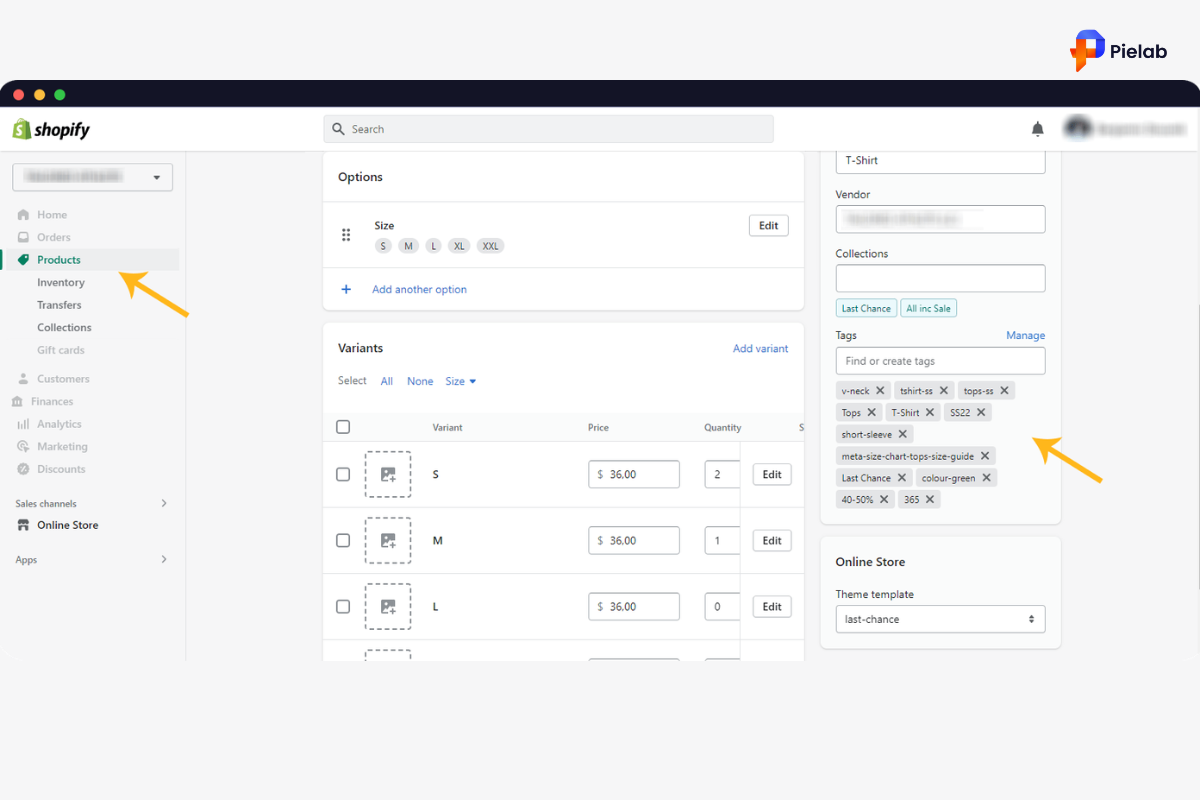
Shopify product tags are labels you apply to products inside your Shopify admin. According to the official Shopify Help Center , tags power the filter menus that let shoppers narrow down choices by color, size, or material.
They serve two main purposes. First, they help you group and organize products internally. Second, they power the filter menus on your collection pages that let shoppers narrow down what they are looking at.
When a shopper visits a collection with 80 products and wants to see only red items, the filter menu built from Shopify product tags lets them do that in one click. From a user experience perspective, this is a genuinely helpful feature.
The problem is what Shopify does behind the scenes when you apply those tags. For every tag applied across multiple collections, Shopify automatically creates a separate URL for each collection. Those URLs are public, crawlable by Google, and almost impossible to customize through standard Shopify settings.
That combination creates a significant Shopify product tags SEO problem that grows quietly as your catalog expands.
Why Shopify Product Tags SEO Is a Hidden Rankings Killer
Here is the specific Shopify product tags SEO problem. Say you have a tag called “colour_red” applied to products across five different collections. Shopify automatically creates five separate pages for that tag, one under each collection URL.
Each of those five pages looks nearly identical to its parent collection page. The H1 heading is the same. The collection description is the same. The meta description is the same. The only difference is which products are shown.
That is textbook duplicate content. And it creates three direct Shopify product tags SEO problems for your store.
Thin content. Duplicate pages reduce the overall quality signal Google associates with your store. Google sees multiple pages saying the same thing and has to decide which one to rank. Usually it ranks none of them well. This is one of the most damaging Shopify product tags SEO consequences merchants face.
Wasted crawl budget. Google only crawls a certain number of pages on your store in each visit. When dozens or hundreds of tag pages exist, Google spends its crawl budget on those duplicates instead of your actual product and collection pages. Important pages get crawled less often. Updates take longer to appear in search results.
Missed keyword opportunities. Some tag pages could rank for real search terms if they were properly optimized. But by default, Shopify product tags cannot be customized with unique titles, descriptions, or content. So those potential rankings never materialize. Understanding this Shopify product tags SEO gap is the first step to fixing it.
How to Check If Your Store Is Already Affected
Most merchants with Shopify product tags have this Shopify product tags SEO problem without knowing it. Here is how to check in under ten minutes.
Steps:
- Open Google and search: site:yourstore.com/collections/ intitle:tagged. Replace “yourstore.com” with your actual domain. If Google returns a list of pages, those are your indexed product tag pages. The more results that appear, the bigger the Shopify product tags SEO issue.
- Click on one of those tag pages. Right-click on the page and select “View Page Source.” Use Ctrl + F to search for the word “canonical.” Check whether the canonical tag points to the tag page itself or to the main collection. It should point to the main collection. If it points to itself, that is a Shopify product tags SEO problem.
- Search the same page source for “noindex.” If there is no noindex tag and no canonical pointing away from the tag page, your tag pages are being indexed freely by Google.
- Check your robots.txt file by visiting yourstore.com/robots.txt. Look for a rule that includes “Disallow: /collections//“. If that rule is not there, Google can crawl all your tag pages without restriction, making your Shopify product tags SEO exposure complete.
If you found indexed tag pages in step one and no canonical or noindex tags in steps two and three, your Shopify product tags SEO is actively working against your store right now.
5 Fixes for Shopify Product Tags SEO
There are several ways to fix this. The right Shopify product tags SEO approach depends on your store setup and how comfortable you are with Shopify’s code editor. Start with the fix that matches your current skill level.
Fix 1: Add a Canonical Tag (Easiest Code Fix)
Why this matters: A canonical tag tells Google that your tag page is a duplicate of the main collection page and that the main collection should be indexed instead. This is one of the most widely used Shopify product tags SEO fixes because it is relatively simple to implement.
Steps:
- Go to Shopify Admin, then Online Store, then Themes, then Edit Code.
- Open the theme.liquid file.
- Find the existing canonical tag line that contains canonical_url.
- Replace it with a conditional block that checks whether you are on a tag page and points the canonical to the main collection URL instead.
This Shopify product tags SEO fix resolves the thin content issue by directing Google to the correct page. It does not save crawl budget because Google will still visit the tag pages, but it does prevent them from competing with your collection pages in search results.
Time to complete: 20 to 30 minutes.
Best for: Stores where a developer or technically confident store owner can edit theme files.
Skip for now if: You have no experience editing Shopify Liquid files. Use Fix 3 instead.
Fix 2: Add a No Index Tag
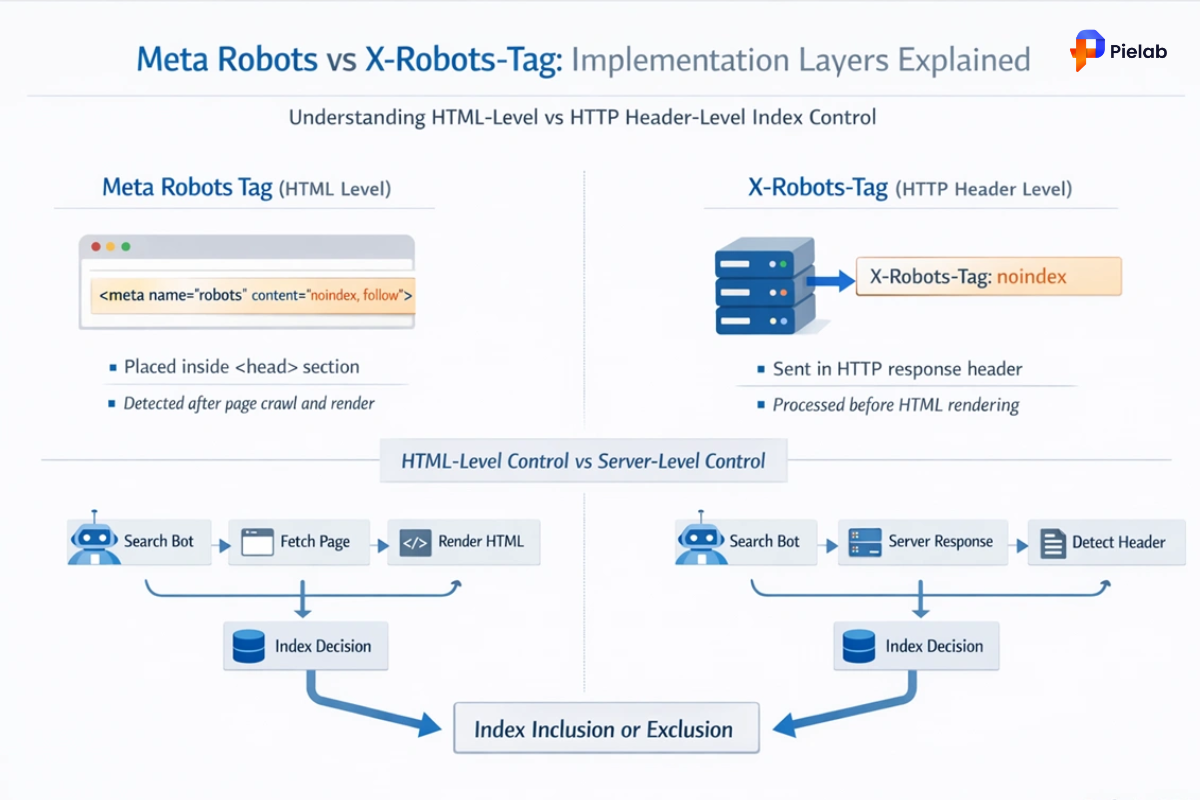
Why this matters: A noindex tag tells Google not to include the tag page in its search index. It is a stronger Shopify product tags SEO signal than a canonical tag and directly removes tag pages from Google’s results.
Steps:
- Open the theme.liquid file in your Shopify code editor.
- Add a conditional code block that detects when you are on a collection page with active tags.
- Within that condition, insert a robots meta tag set to “noindex, follow.”
The “follow” instruction means Google will still follow links on the tag page. The “noindex” instruction removes the tag page from search results. Together they form a clean Shopify product tags SEO fix for stores that want tag pages out of the index without blocking crawl entirely.
Time to complete: 15 to 20 minutes.
Best for: Stores that want a direct Shopify product tags SEO solution without blocking crawl.
Note: Do not apply both noindex and canonical to the same tag pages. They contradict each other. Choose one.
Fix 3: Block Tag Pages in Robots.txt (Saves Crawl Budget)
Why this matters: Blocking tag pages in robots.txt stops Google from crawling them entirely. This is the only Shopify product tags SEO fix that also saves your crawl budget, which makes it the most complete solution available.
Steps:
- In your Shopify code editor, open or create the robots.txt.liquid file.
- Add a disallow rule that blocks access to /collections/any-collection/anything. This pattern covers all tag page URLs without blocking your main collection pages.
Important warning: If your store uses URLs that include both a collection and a product name in the path, this rule may accidentally block those product pages from being crawled. Check your URL structure carefully before applying this Shopify product tags SEO fix. If you are not confident, get a second opinion before pushing this change live.
Time to complete: 20 to 30 minutes including verification.
Best for: Stores with large numbers of tag pages and a clear URL structure.
Recommended: Pair this fix with Fix 2 for the first few days so any already-indexed tag pages are removed from Google before you block crawl entirely.
Fix 4: Turn Tag Pages Into Real Sub-Category Pages
Why this matters: Instead of hiding tag pages from Google, this Shopify product tags SEO approach turns them into genuinely useful ranking pages with unique titles, descriptions, and content.
This is the only fix that creates new ranking opportunities rather than just resolving a problem. A tag page under /collections/sofas/leather can rank for “leather sofas” as a legitimate sub-category. It transforms a Shopify product tags SEO liability into an asset.
Steps:
- Work with a Shopify developer to add functionality that allows unique title tags, meta descriptions, and H1 headings on tag pages.
- Identify which tags have real keyword potential. Check search volume for terms that match your tag names.
- Write unique content for each tag page you want to rank, treating it as a genuine category page.
Time to complete: Several days of development work plus ongoing content creation. Best for: Stores with experienced developers and tags that match high-volume search terms. Skip for now if: You do not have developer resources. Fix 1 or Fix 3 will serve your Shopify product tags SEO better in the short term.
Fix 5: Delete Unused Product Tags
Why this matters: If you have Shopify product tags that are not actively being used to filter products for shoppers, deleting them removes the Shopify product tags SEO problem entirely without any code changes.
Steps:
- Review your Shopify product tags list and identify any tags not powering active filter menus on collection pages.
- Remove those tags from your products.
- Set up 301 redirects from the tag URLs to the main collection pages before deleting them. This prevents 404 errors for any tag pages that Google has already indexed or that have external links pointing to them.
Time to complete: 30 to 60 minutes depending on how many unused tags you have. Best for: Stores that added tags for internal organization but do not use them for front-end filtering.
Shopify Product Tags Best Practices Going Forward
Fixing existing tag pages is step one. Following Shopify product tags best practices from this point forward is what prevents the problem from coming back.
Only create a tag if it serves a genuine filtering purpose for shoppers. Tags created purely for internal organization should be handled using Shopify metafields or custom fields instead. This is the most important of all Shopify product tags best practices because it stops the problem before it starts.
Keep tag names clean and descriptive. Tags like “colour_red” create ugly URLs. Tags like “red” or “leather” are cleaner and more useful if those pages ever surface in search. Clean naming is a simple Shopify product tags best practices step that most merchants overlook.
Audit your tag pages every quarter. As your product catalog grows, new tags accumulate. Set a reminder to check Google Search Console for newly indexed tag pages every three months and address them before they compound into a larger Shopify product tags SEO issue.
If you add new collections, check whether existing tags now apply across those collections. Each new collection a tag applies to creates a new tag page. Following Shopify product tags best practices means reviewing your full tag list whenever your catalog structure changes.
Tools That Help You Manage Shopify Product Tags SEO
Manual tag management works for small stores. For stores with large catalogs or ongoing tag issues, the right tool saves significant time and reduces the risk of human error in your Shopify product tags SEO workflow.
SearchPie: SEO Audit and Fix Workflow for Shopify Product Tags SEO
SearchPie is the most practical tool for Shopify merchants who want to identify and fix Shopify product tags SEO issues without manually digging through Google Search Console and theme files every month.
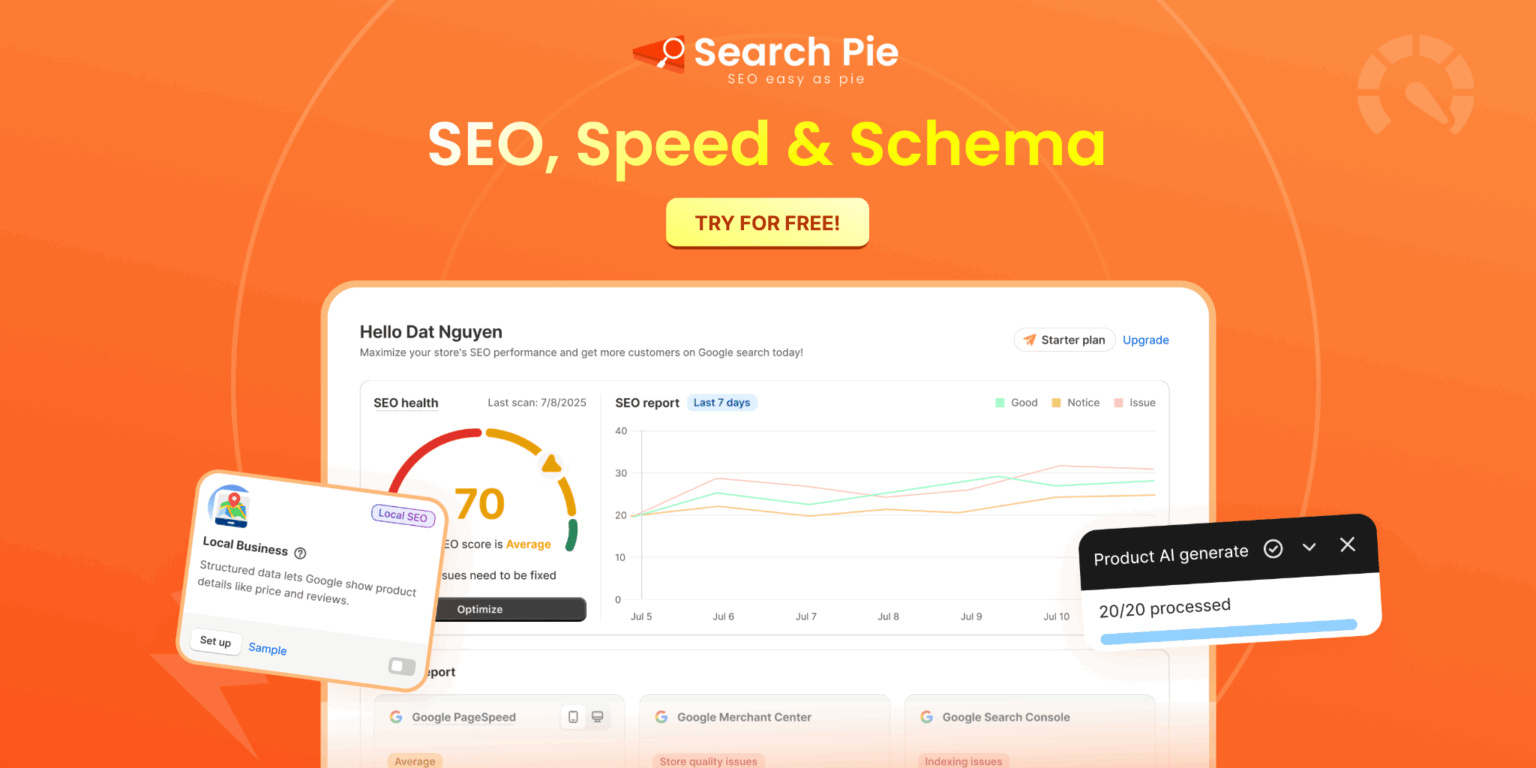
SearchPie’s SEO audit feature scans your store for duplicate content issues, including those created by product tag pages. It flags which tag pages are being indexed, identifies missing or incorrect canonical tags, and highlights pages where your crawl budget is being wasted on low-value URLs. Instead of discovering your Shopify product tags SEO problem through a manual Google site search, SearchPie surfaces it directly in your dashboard with specific recommendations for each issue.
For merchants who have fixed their tag pages and want to prevent the problem from returning, SearchPie monitors your store’s indexed pages on an ongoing basis. If new tag pages appear in Google’s index after a catalog update or theme change, you see it in SearchPie before it grows into a larger Shopify product tags SEO setback.
SearchPie also manages meta tags, alt text, and page speed improvements in the same workflow. This means your Shopify product tags SEO fixes sit alongside your other SEO improvements rather than being a separate task you have to remember to revisit.
Best for: Shopify merchants who want ongoing monitoring of Shopify product tags SEO issues including duplicate content and canonical tag problems, without manually checking Search Console every week.
[IMAGE: searchpie-shopify-product-tags-seo-audit-dashboard.jpg] Alt text: “SearchPie SEO audit showing Shopify product tags SEO issues including duplicate content and canonical tag problems”
How to Know If Your Shopify Product Tags SEO Fixes Are Working
Timeline: Canonical and noindex Shopify product tags SEO fixes take 2 to 4 weeks for Google to process after recrawling your pages. Crawl budget improvements from robots.txt changes show up in Search Console crawl stats within 2 to 3 weeks. Ranking improvements on collection pages take 6 to 10 weeks to appear clearly in performance data.
Fix Your Shopify Product Tags SEO Before It Gets Worse
Shopify product tags SEO issues are not static. Every new product you add, every new collection you create, and every new tag you apply can generate more duplicate pages. A store that has ten tag pages today can have a hundred within a year.
The fix is straightforward. Check whether the Shopify product tags SEO problem exists on your store right now using the steps in Section 3. Then apply the fix that matches your setup, starting with a canonical or noindex tag if you are comfortable with Shopify’s code editor, or using SearchPie to identify and track the issues automatically.
Following Shopify product tags best practices means creating tags intentionally, managing them regularly, and making sure Google is spending its time on the pages that actually matter for your rankings.
Ready to find and fix your Shopify product tags SEO issues faster?
SearchPie audits your store for duplicate content, flags tag page problems, and monitors your indexed pages on an ongoing basis. No manual Search Console digging required.
FAQs
You can use Shopify product tags to create conditions for collections, discounts, automation workflows, and app displays based on specific tagged products.
Shopify product tags are labels added to products to help organize inventory, automate workflows, and filter products inside your store admin.
Open the product in Shopify Admin, locate the Tags section, and delete the tag you no longer want before saving the product.
Product tags can be used to organize products, create automated collections, filter search results, and trigger app conditions or promotions.
Go to a product page in Shopify Admin, enter your desired tags in the Tags field, and save the product to apply them.